Emalaf Medical Platform — User Manual
Comprehensive guide for all roles across Radiology, Pathology, Ophthalmology, Dentistry and Neurophysiology — patients, receptionists, technicians, doctors and administrators.
منصة emalaf الطبية — دليل المستخدم
دليل شامل لكل الأدوار عبر الأشعة وعلم الأمراض وطب العيون وطب الأسنان والفيزيولوجيا العصبية — المرضى، موظفو الاستقبال، الفنيون، الأطباء، والمديرون.
Introduction مقدمة
The RIS Portal is a Radiology Information System (RIS) designed for multi-specialty healthcare centres. It handles the complete patient journey — from appointment booking through imaging, reporting, and patient access — across five specialty modules: Radiology Pathology Ophthalmology Dentistry EEG.
The system is available in English and Arabic. Language can be changed from the navigation bar at any time.
تُعدّ بوابة RIS نظام معلومات أشعة متكامل مصمم للمراكز الصحية متعددة التخصصات. يغطي النظام رحلة المريض كاملةً — من حجز الموعد وحتى التصوير والتقرير واطلاع المريض على نتائجه — عبر خمس وحدات تخصصية: الأشعة التشريح المرضي طب العيون طب الأسنان تخطيط الدماغ.
النظام متاح بالعربية والإنجليزية؛ يمكن تغيير اللغة من شريط التنقل في أي وقت.
Feature Status Legend دليل حالة الميزات
Throughout this manual you'll see badges next to feature names. They tell you whether the feature is ready to use in production today, or still on the roadmap.
| Badge | Meaning | What you'll see in the app |
|---|---|---|
| Live | Implemented and in use in production. | Works as described. No banners. |
| Beta | Working but rough edges or partial data. | May show an info banner asking for feedback. |
| Soon | UI is wired but the action is intentionally disabled until the backend ships. | Greyed-out button with "Soon" badge, or an amber info banner. |
| Planned | On the roadmap, not implemented in any form yet. | Mentioned in this manual; no UI surface in the app. |
| Research | Concept under evaluation. | No visible UI. |
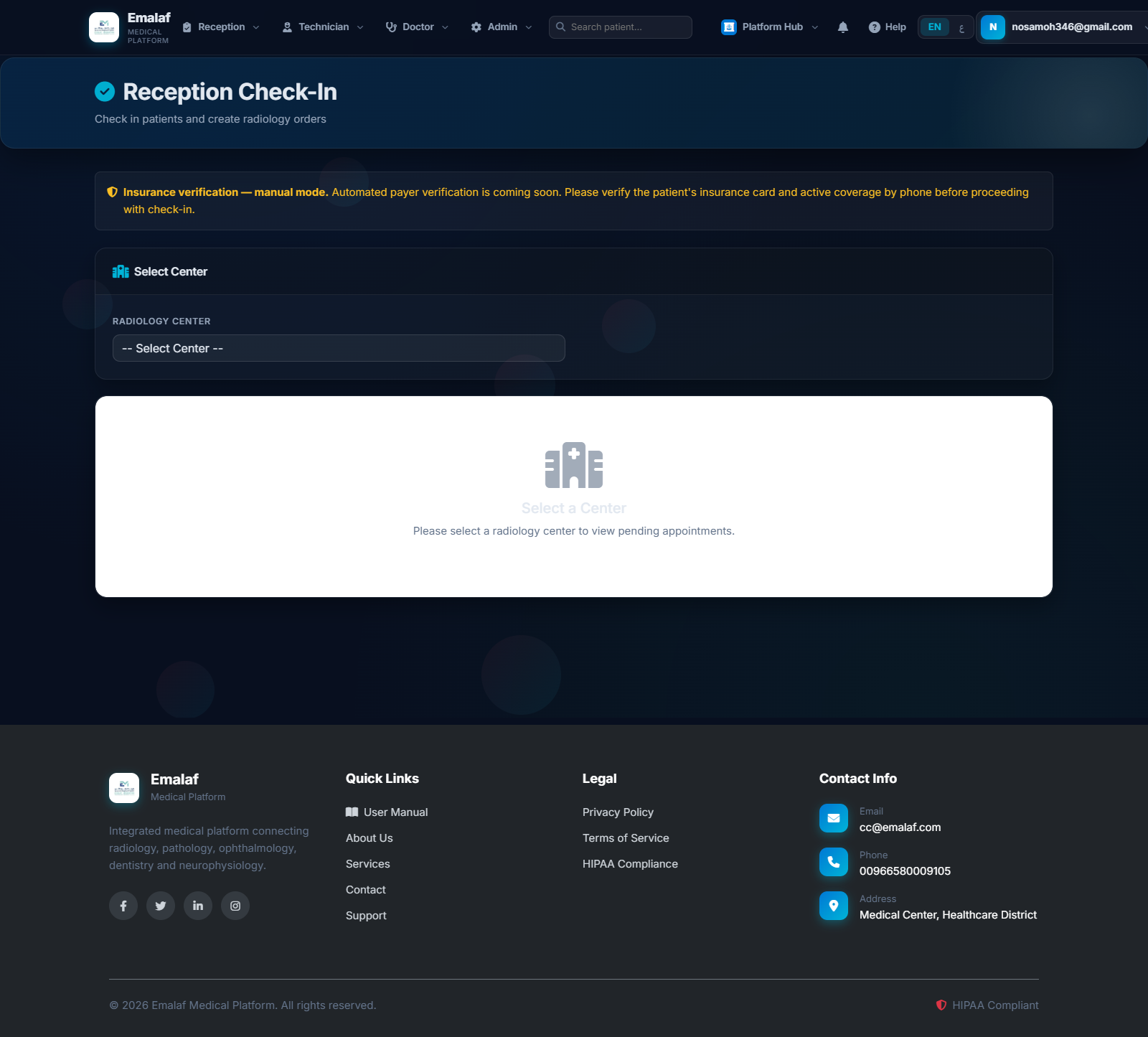
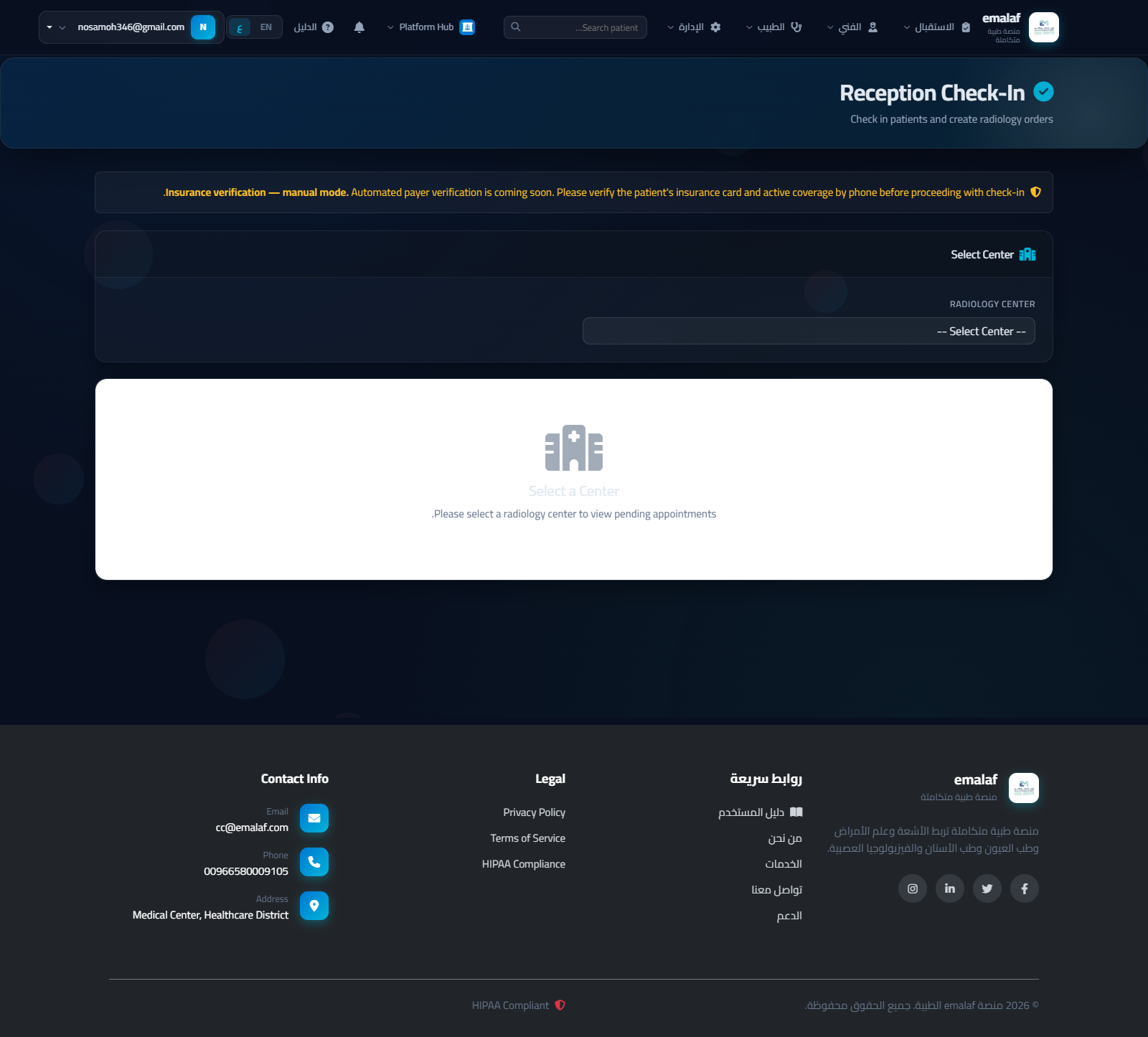
What "Soon" looks like in the app: a button might appear greyed-out with a small "Soon" badge next to it, and hovering shows a tooltip such as "PDF download is coming soon". You'll also see amber info banners at the top of pages that depend on a future feature — for example, the reception check-in page shows a banner explaining that insurance verification is currently in manual mode.
سترى عبر هذا الدليل شارات صغيرة بجوار اسم كل ميزة، توضح ما إذا كانت جاهزة للاستخدام في الإنتاج اليوم أم أنها لا تزال ضمن خارطة الطريق.
| الشارة | المعنى | ما تراه داخل النظام |
|---|---|---|
| Live | مُنفّذة وقيد الاستخدام في الإنتاج. | تعمل كما هو موصوف. بدون أي تنبيهات. |
| Beta | تعمل لكن بها حواف خشنة أو بيانات جزئية. | قد تظهر لافتة معلوماتية تطلب الملاحظات. |
| Soon | واجهة المستخدم جاهزة لكن الإجراء مُعطّل عمداً حتى يكتمل الجانب الخلفي. | زر باهت اللون مع شارة "Soon"، أو لافتة معلوماتية كهرمانية. |
| Planned | موجودة على خارطة الطريق ولم يبدأ تنفيذها. | مذكورة في هذا الدليل دون أي واجهة في النظام. |
| Research | فكرة قيد التقييم. | لا توجد واجهة ظاهرة. |
كيف يبدو "Soon" داخل النظام: قد يظهر الزر بلون باهت مع شارة "Soon" صغيرة، وعند تمرير المؤشر فوقه تظهر رسالة مثل «تحميل PDF قريباً». كما سترى لافتات كهرمانية أعلى الصفحات التي تعتمد على ميزة قادمة — مثل صفحة استقبال المرضى التي توضّح أن التحقق من التأمين يتم يدوياً في الوقت الحالي.
User Rolesأدوار المستخدمين
| Role | الدور | Access | الصلاحيات | Login hint | بريد الدخول |
|---|---|---|---|---|---|
| Admin | Full system access, user & center management, billing, analytics | وصول كامل للنظام، إدارة المستخدمين والمراكز، الفوترة، التحليلات | admin@… | ||
| Doctor | Worklist, image viewer, write & finalize reports | قائمة الأعمال، مشغّل الصور، كتابة التقارير وإتمامها | doctor@… / radiolog@… | ||
| Technician | Receive orders, upload DICOM / images, add notes | استلام الطلبات، رفع الصور، إضافة ملاحظات | tech@… | ||
| Receptionist | Check-in patients, assign technician & room, manage queue | تسجيل حضور المرضى، تعيين الفني والغرفة، إدارة الانتظار | recept@… | ||
| Patient | Book appointments, view own reports, patient portal | حجز المواعيد، الاطلاع على التقارير، البوابة الشخصية | Self-registrationتسجيل ذاتي | ||
| Specialist | Module-specific specialist (Pathologist, Ophthalmologist, Dentist, Neurophysiologist) | متخصص في وحدة معينة (أخصائي تشريح، عيون، أسنان، أعصاب) | patholog@ / ophthal@ / dent@ / neuro@ |
Login & Navigationتسجيل الدخول والتنقل
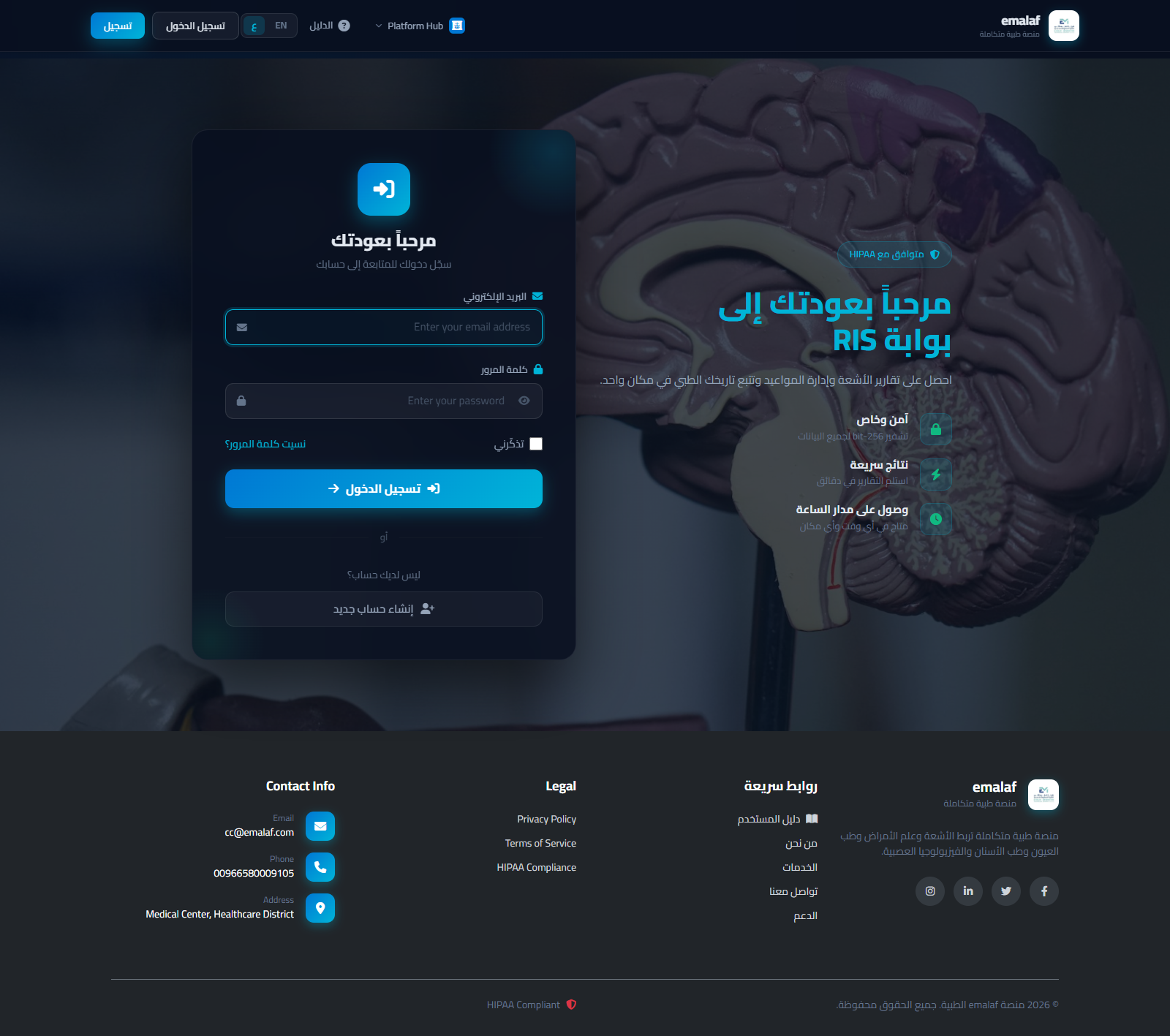
Language can be switched via the EN/AR toggle in the top navigation bar. The preference is saved in a cookie.
Specialist Navigation
Specialist roles (Pathologist, Ophthalmologist, Dentist, Neurophysiologist) see their own dedicated navbar dropdown after login:
| Role | Navbar item | Landing page after login |
|---|---|---|
| Pathologist | Pathology dropdown → My Cases / Pending / Reported / Signed | /Pathology/Case |
| Ophthalmologist | Ophthalmology dropdown → My Exams / Scheduled / Reported / Signed | /Ophthalmology/Exam |
| Dentist | Dentistry dropdown → My Encounters / Pending / Reported / Signed | /Dentistry/Encounter |
| Neurophysiologist | EEG dropdown → My Studies / Uploaded / Reported / Signed | /EEG/Study |
From their worklist, specialists can: open a case/exam/encounter/study detail page, view linked imaging (slide viewer, OCT viewer, dental X-ray viewer, EEG waveform viewer), write and finalize reports, and flag critical results.
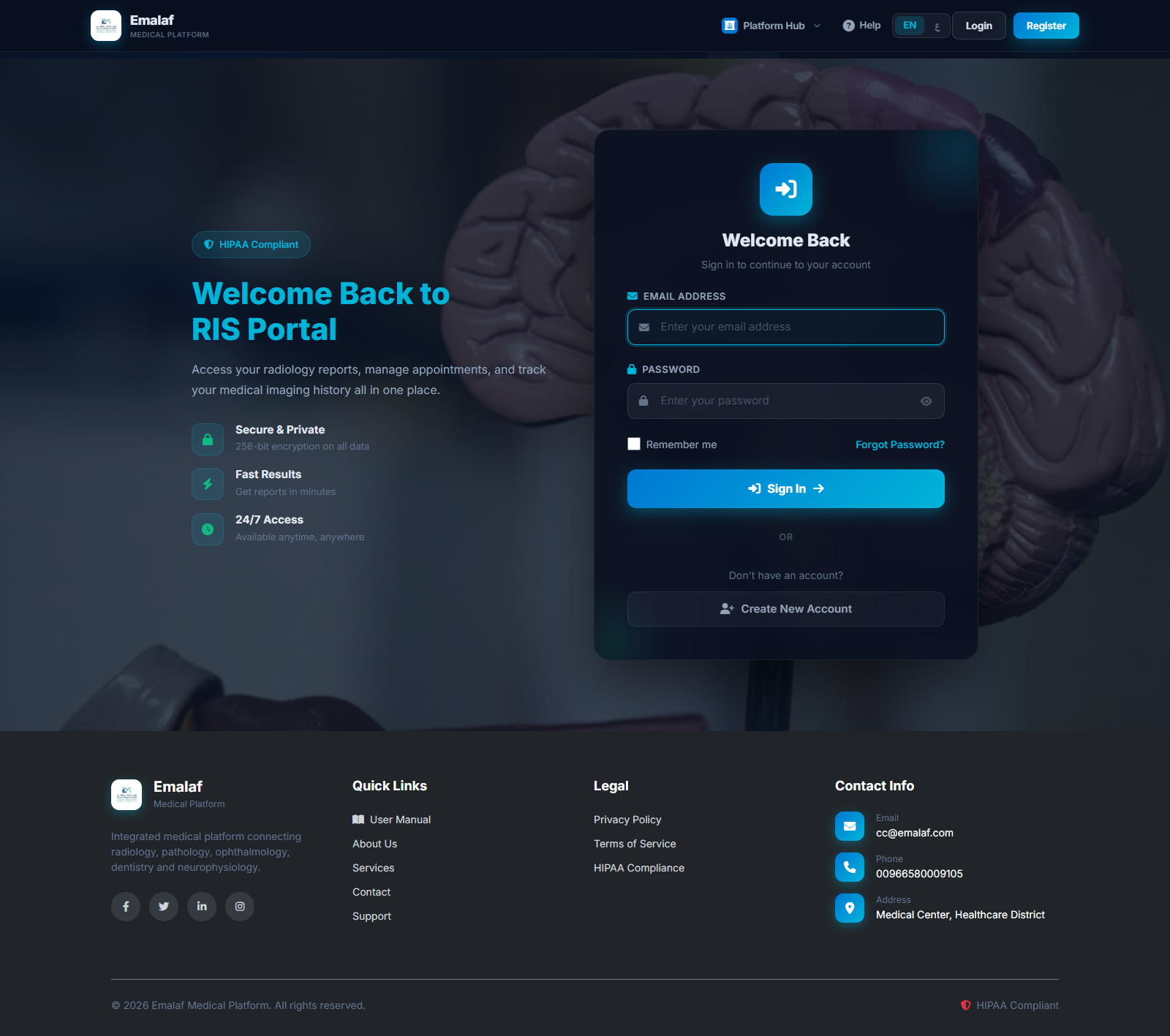
يمكن تبديل اللغة عبر زر EN/AR في شريط التنقل العلوي. يُحفظ الاختيار في ملف تعريف الارتباط.
تنقل المتخصصين
يرى المتخصصون (أخصائي تشريح، عيون، أسنان، أعصاب) قائمة تنقل خاصة بهم بعد تسجيل الدخول:
| الدور | عنصر شريط التنقل | صفحة البداية بعد الدخول |
|---|---|---|
| أخصائي تشريح | قائمة Pathology ← حالاتي / معلقة / مُبلَّغ عنها / موقَّعة | /Pathology/Case |
| طبيب عيون | قائمة Ophthalmology ← فحوصاتي / مجدولة / مُبلَّغ عنها / موقَّعة | /Ophthalmology/Exam |
| طبيب أسنان | قائمة Dentistry ← زياراتي / معلقة / مُبلَّغ عنها / موقَّعة | /Dentistry/Encounter |
| أخصائي أعصاب | قائمة EEG ← دراساتي / مرفوعة / مُبلَّغ عنها / موقَّعة | /EEG/Study |
من قائمة أعمالهم، يمكن للمتخصصين: فتح صفحة تفاصيل الحالة/الفحص/الزيارة/الدراسة، مشاهدة الصور المرتبطة (مشغّل الشرائح، مشغّل OCT، مشغّل أشعة الأسنان، مشغّل تخطيط الدماغ)، كتابة التقارير وتوقيعها، وتحديد النتائج الحرجة.
Clinical Workflow Overviewنظرة عامة على سير العمل
Registerتسجيل
Appointmentموعد
Check-Inحضور
Imagingتصوير
QA Reviewمراجعة جودة
Reportتقرير
Patient Accessاطلاع المريض
1 — Patient Registration١ — تسجيل المريض
2 — Book Appointment٢ — حجز موعد
Receptionists can also book on behalf of a patient via Menu → Appointment Management.
يمكن للاستقبال حجز موعد نيابةً عن المريض من القائمة ← إدارة المواعيد.
3 — Reception & Check-In٣ — الاستقبال وتسجيل الحضور
STAT orders are flagged with a pulsing red badge across the entire system. The doctor's worklist shows a STAT count banner and sorts STAT → Urgent → Routine. Orders waiting >24 h are highlighted amber; >48 h in red.
تُميَّز طلبات STAT ببادج أحمر نابض في كامل النظام. تعرض قائمة الطبيب لافتة عدد STAT وتُرتَّب الطلبات: STAT ← عاجل ← روتيني. الطلبات المنتظرة >24 ساعة تُلوَّن بالعنبر؛ >48 ساعة باللون الأحمر.
4 — Technician Upload٤ — رفع الفني للصور
If a QA reviewer rejects the images, the order returns to Assigned status with a rejection reason shown in red on your dashboard. Retake and re-upload.
إذا رفض مراجع الجودة الصور، يعود الطلب إلى حالة معيَّن مع سبب الرفض بالأحمر في لوحتك. أعد التصوير والرفع.
5 — QA Image Review٥ — مراجعة جودة الصور
Before images reach the doctor's worklist, a quality check confirms that technical image quality is adequate (correct anatomy, no motion artifact, sufficient coverage).
Reject → enter a reason; status returns to Assigned so the technician can retake.
قبل وصول الصور لقائمة أعمال الطبيب، يتحقق مراجع الجودة من الجودة التقنية للصور (تشريح صحيح، بدون اهتزاز، تغطية كافية).
رفض ← أدخل السبب؛ تعود الحالة إلى معيَّن ليُعيد الفني التصوير.
6 — Doctor Reporting٦ — تقرير الطبيب
Worklist Filters & TAT Warnings
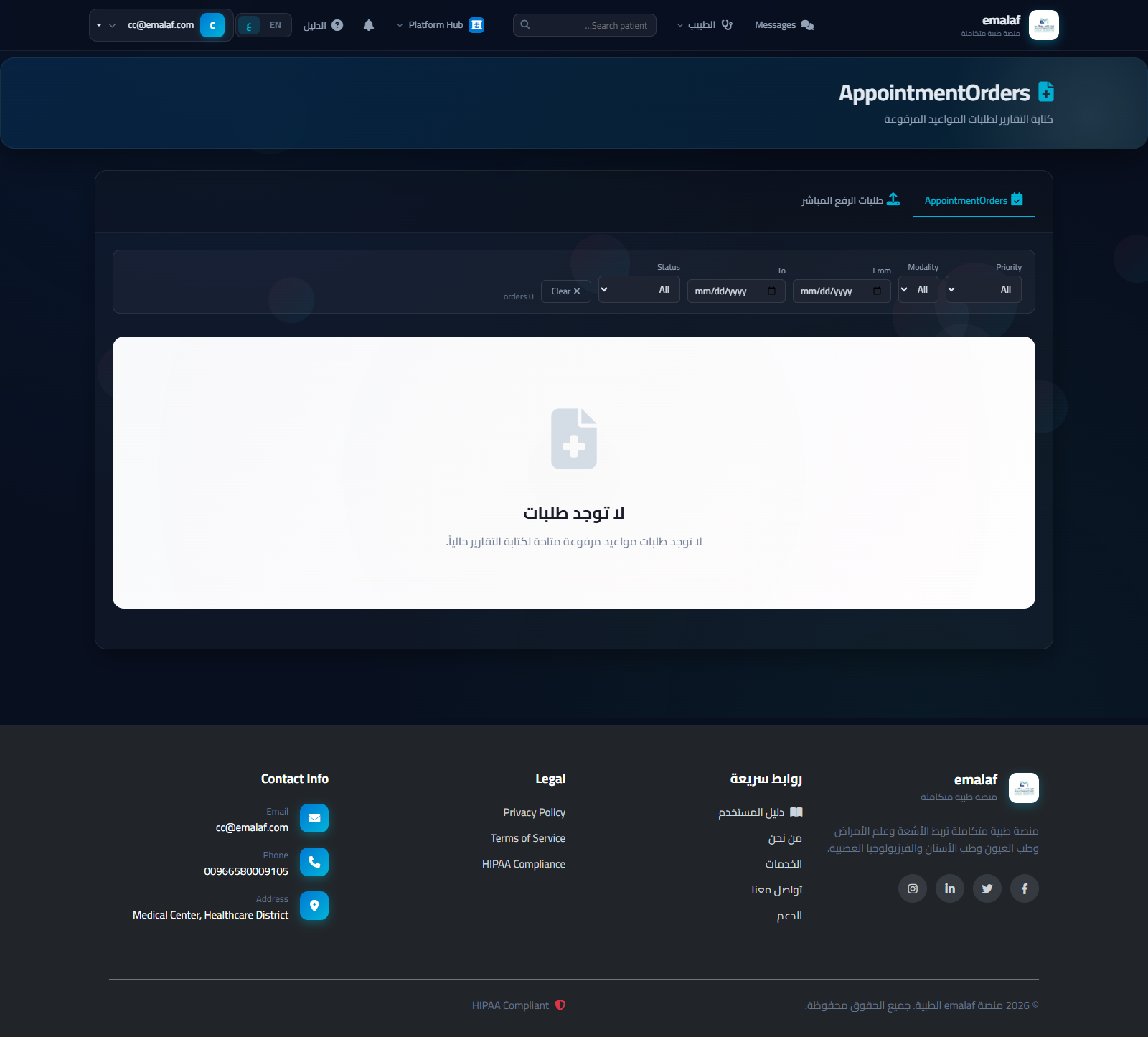
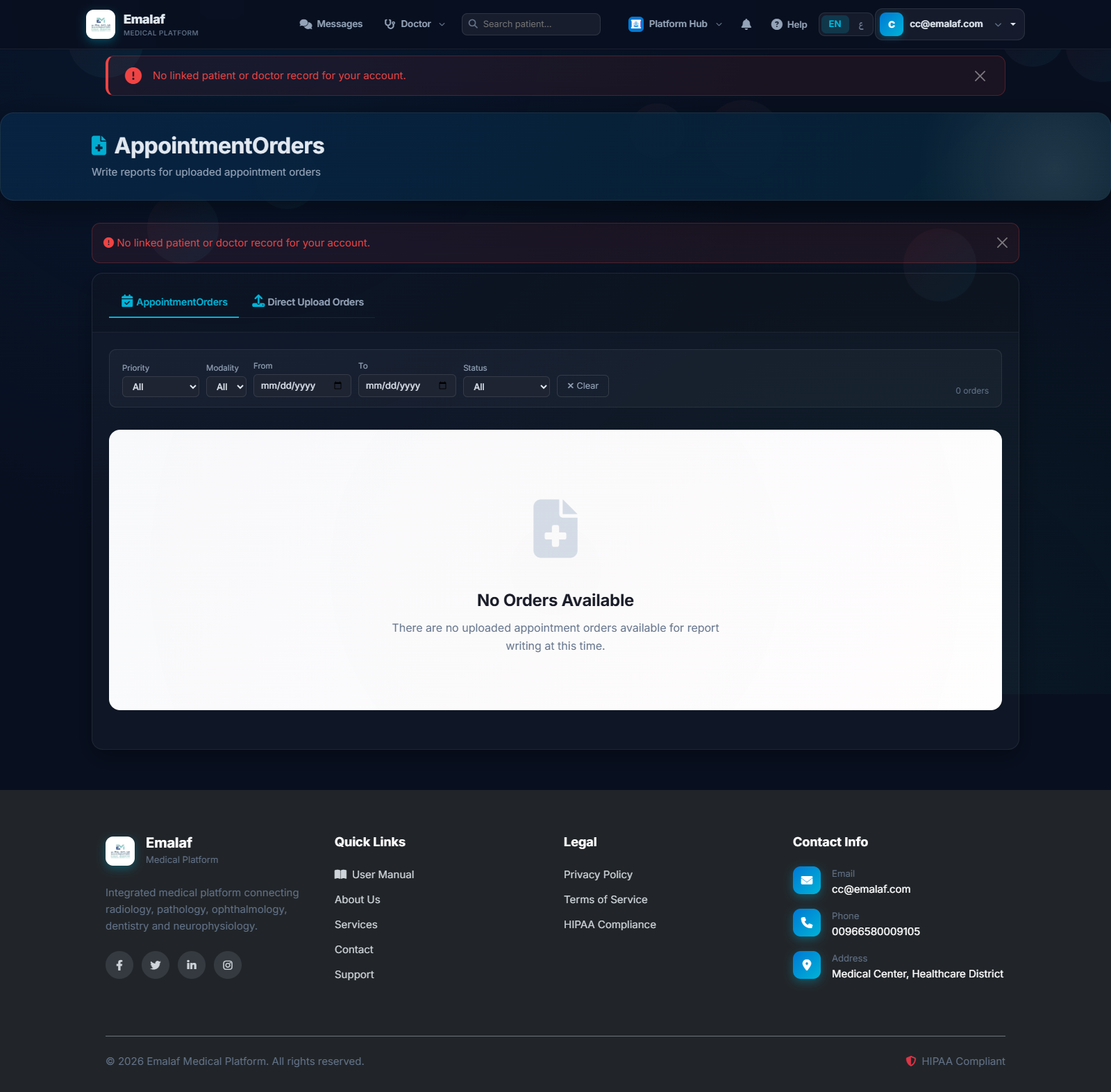
The worklist has a filter bar to narrow orders by Priority, Modality, date range, and Status (Uploaded / QA Approved). Orders are pre-sorted STAT → Urgent → Routine, then oldest-first within each group. The TAT (Turnaround Time) column shows wait time since upload, highlighted amber after 24 h and red after 48 h. A STAT count banner at the top shows how many STAT cases are pending.
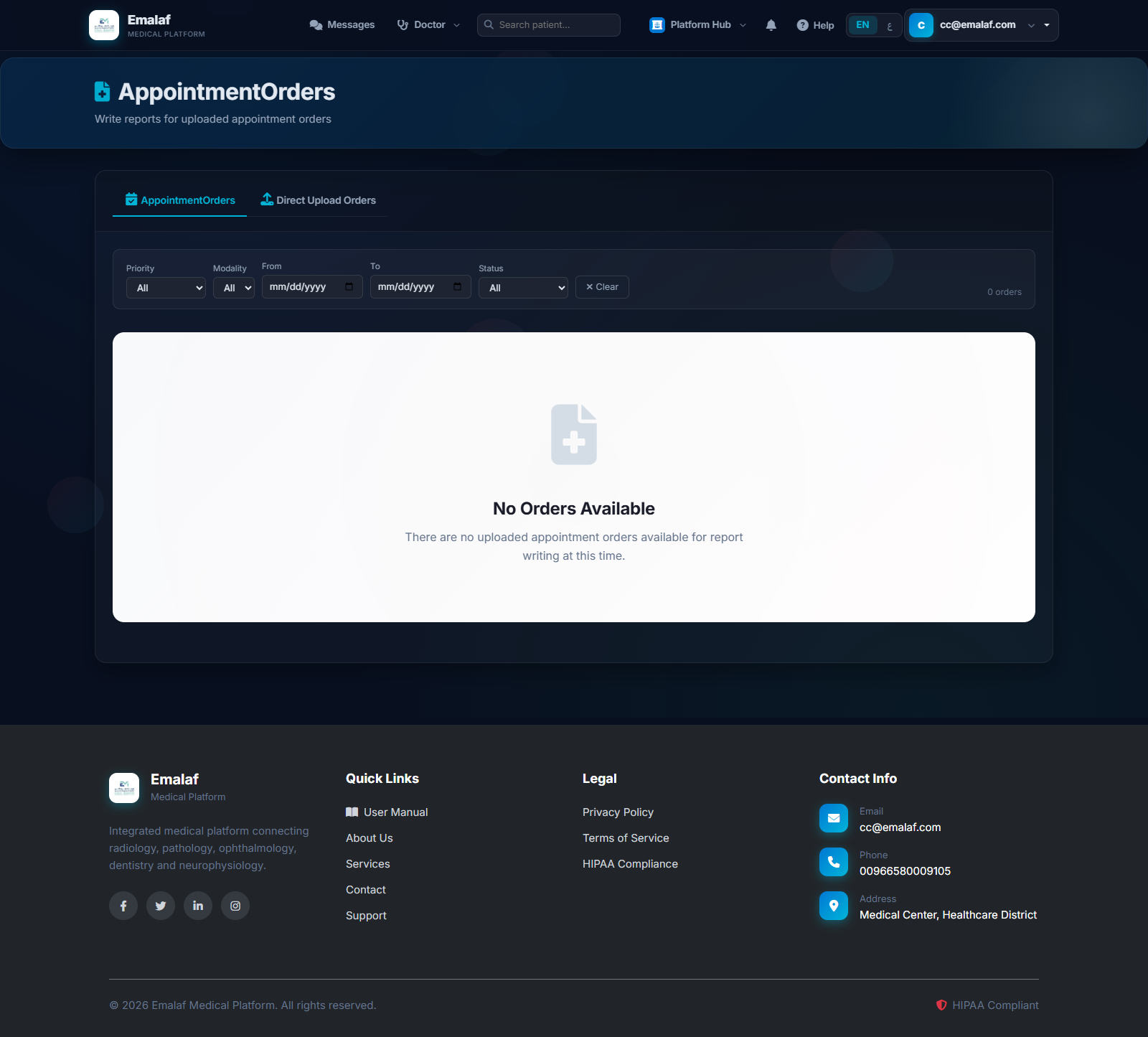
فلاتر قائمة الأعمال وتحذيرات وقت الاستجابة
تحتوي قائمة الأعمال على شريط تصفية للطلبات حسب الأولوية، نوع الجهاز، نطاق التاريخ، والحالة (مرفوع / معتمد QA). الطلبات مُرتَّبة مسبقاً STAT ← عاجل ← روتيني، ثم الأقدم أولاً داخل كل مجموعة. يُظهر عمود وقت الانتظار المدة منذ الرفع، ويتحول عنبري بعد 24 ساعة وأحمر بعد 48 ساعة. تظهر لافتة أعلى الصفحة بعدد طلبات STAT المعلقة.
7 — Patient Portal٧ — بوابة المريض
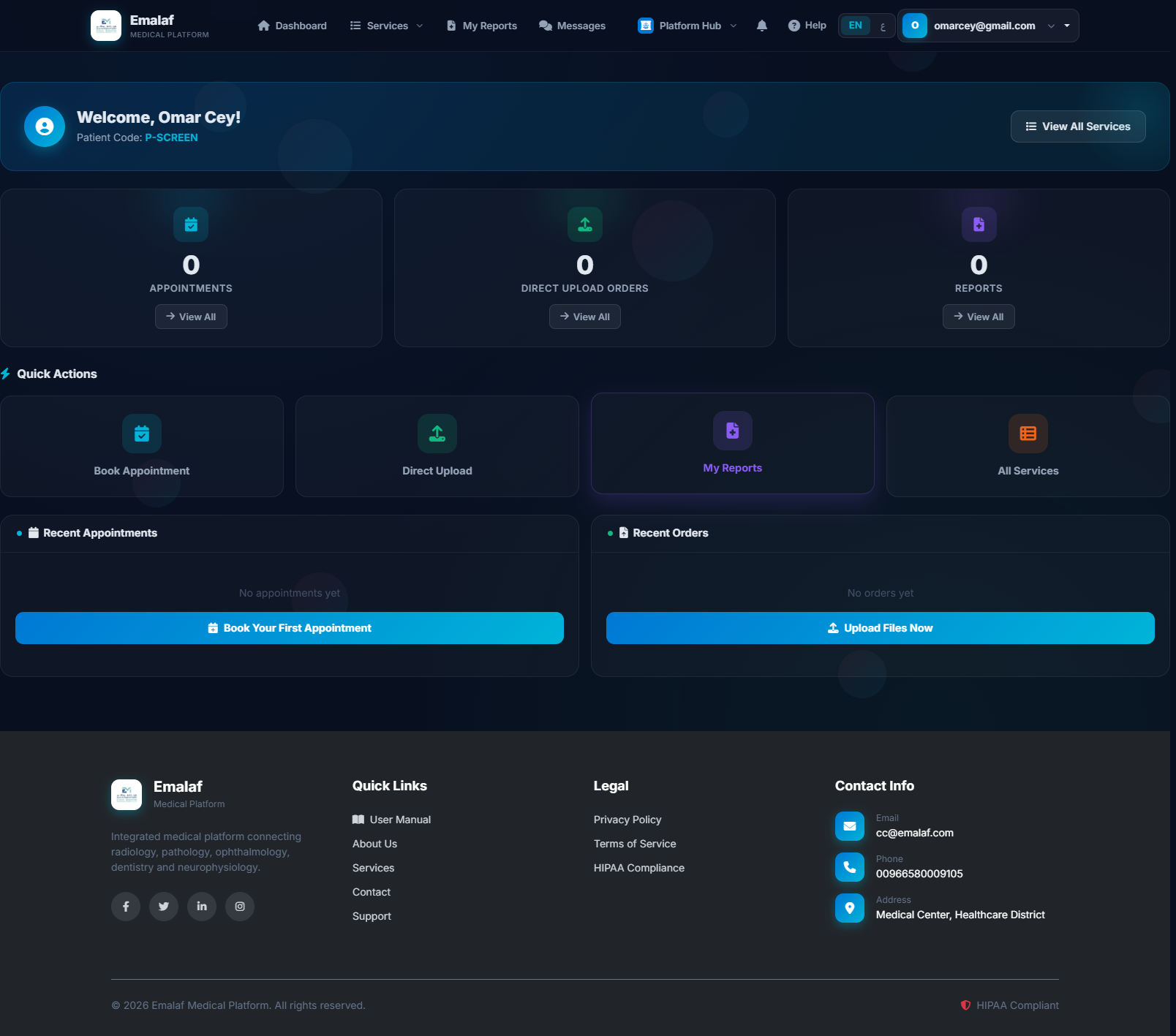
Patients can log in and access their Patient Portal to:
- Book new appointments
- View upcoming and past appointments
- Download finalized reports (PDF)
- View their cross-module Patient Timeline (all visits, tests, reports)
- Update personal information
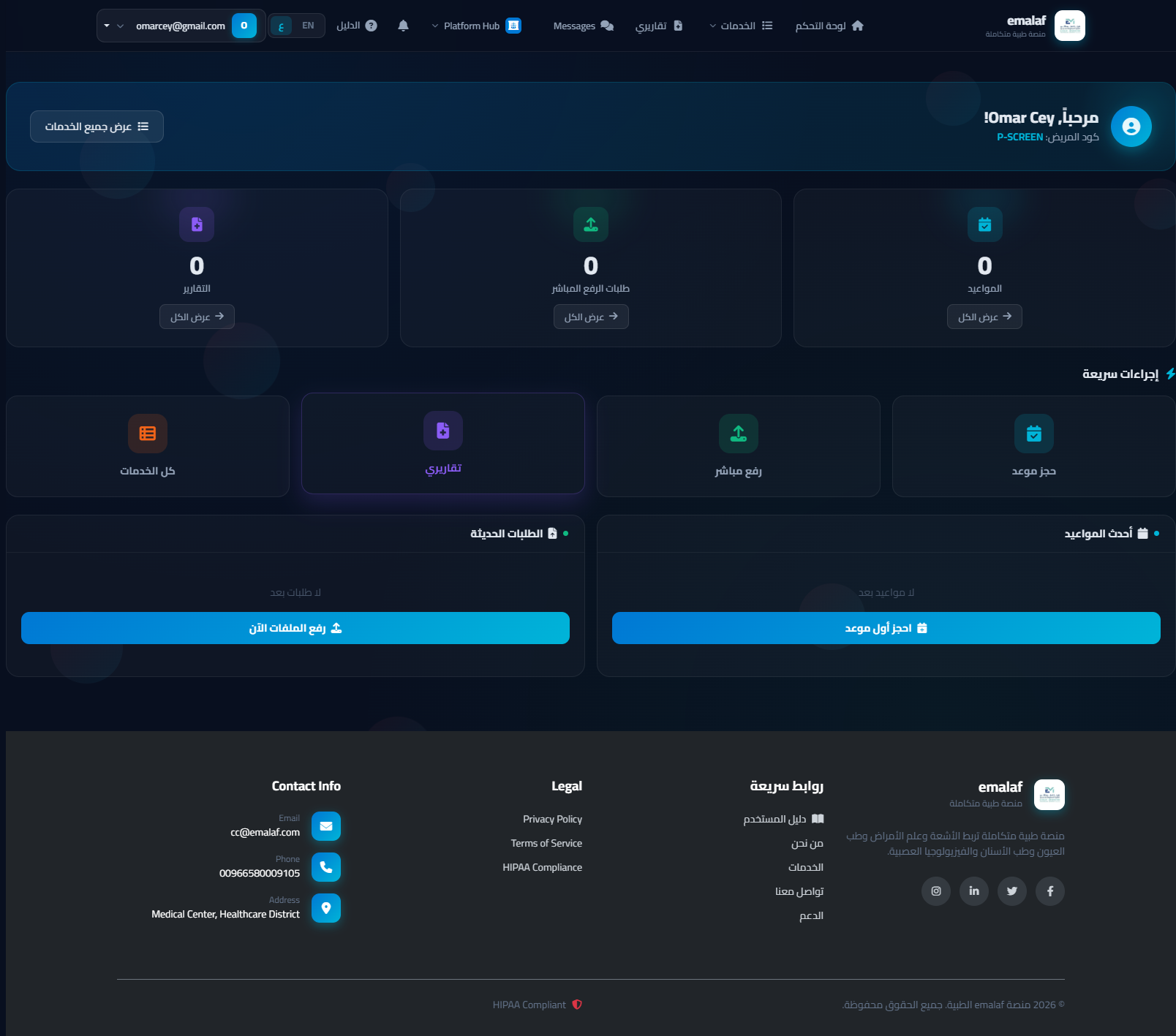
يمكن للمرضى الدخول والاطلاع على بوابتهم الشخصية لـ:
- حجز مواعيد جديدة
- عرض المواعيد القادمة والسابقة
- تحميل التقارير النهائية (PDF)
- عرض الجدول الزمني للمريض عبر جميع الوحدات
- تحديث البيانات الشخصية
Global Patient Searchالبحث العالمي عن المريض
A live search bar in the top navigation bar (hidden for Patient role) allows any staff member to quickly find a patient by name, patient code, or date of birth — from anywhere in the system.
Search is phonetic — partial first name, last name, or patient code all work. Press Esc or click away to dismiss the dropdown.
يوفر شريط البحث الحي في شريط التنقل العلوي (مخفي لدور المريض) إمكانية البحث السريع عن أي مريض من أي مكان في النظام بالاسم أو الرمز أو تاريخ الميلاد.
البحث صوتي — الاسم الأول أو الأخير جزئياً أو رمز المريض كلها تعمل. اضغط Esc أو انقر خارجاً لإغلاق القائمة المنسدلة.
Notification Bellجرس الإشعارات
The bell icon in the top-right navbar shows a live count of pending action items. It refreshes every 60 seconds automatically. Notifications are role-specific and derived from live database data — no separate inbox table is needed.
| Role | What triggers a notification |
|---|---|
| Admin | Unacknowledged critical results · Orders pending QA review · STAT orders awaiting report · Low inventory items · Equipment due for maintenance |
| Doctor | New orders ready for reporting · STAT orders assigned to you · Orders waiting >24 h |
| Technician | QA-rejected orders (retake needed) · STAT orders newly assigned to you |
| Receptionist | Today's confirmed appointments not yet checked in |
| Patient | Finalized reports available in the last 7 days |
Click the bell to open the notification dropdown. Click Refresh inside the dropdown to fetch the latest count immediately.
تُظهر أيقونة الجرس في أعلى يمين شريط التنقل عدداً حياً لعناصر الإجراء المعلقة. تتحدث كل 60 ثانية تلقائياً. الإشعارات خاصة بكل دور ومشتقة من بيانات قاعدة البيانات الحية — لا جدول إشعارات منفصل.
| الدور | ما يُطلق إشعاراً |
|---|---|
| مدير | نتائج حرجة غير مؤكدة · طلبات بانتظار مراجعة الجودة · طلبات STAT بانتظار تقرير · مخزون منخفض · أجهزة تحتاج صيانة |
| طبيب | طلبات جديدة جاهزة للتقرير · طلبات STAT مُعيَّنة لك · طلبات بانتظار >24 ساعة |
| فني | طلبات مرفوضة من الجودة (إعادة تصوير) · طلبات STAT مُعيَّنة حديثاً |
| استقبال | مواعيد اليوم المؤكدة غير المُسجَّل حضورها |
| مريض | تقارير نهائية متاحة خلال آخر 7 أيام |
اضغط الجرس لفتح قائمة الإشعارات المنسدلة. اضغط تحديث داخل القائمة لجلب أحدث عدد فوراً.
Radiology Moduleوحدة الأشعة
DICOM Viewer
The system includes a full DICOM viewer accessible from the doctor worklist. The viewer supports window/level adjustment, zoom, pan, multi-series navigation, and measurements. On systems with OHIF configured, the full OHIF v3 viewer is loaded; otherwise a DWV-based viewer is used.
Access: Worklist → order row → "View Images" or directly via /Radiology/Viewer/Studies/{orderId}.
Reports
Radiology reports support structured fields (Findings, Impression, Recommendations, Critical Results flag) plus free-text. Templates can be applied from the "Apply Template" button.
مشغّل DICOM
يتضمن النظام مشغّل DICOM متكامل متاح من قائمة أعمال الطبيب. يدعم المشغّل ضبط النوافذ والمستويات، التكبير، الإزاحة، التنقل بين السلاسل، والقياسات. على الأجهزة التي تحتوي على OHIF يُحمَّل مشغّل OHIF v3 الكامل وإلا يُستخدم مشغّل DWV.
الوصول: قائمة الأعمال ← الطلب ← "عرض الصور" أو مباشرة عبر /Radiology/Viewer/Studies/{orderId}.
التقارير
تقارير الأشعة تدعم حقولاً هيكلية (النتائج، الانطباع، التوصيات، علامة النتائج الحرجة) بالإضافة إلى النص الحر. يمكن تطبيق القوالب من زر "تطبيق قالب".
Pathology Moduleوحدة التشريح المرضي
The pathology module handles tissue specimen cases. Slides are digitized as Deep Zoom Images (DZI) and viewed in an OpenSeadragon-based whole-slide viewer.
Whole-Slide Viewer
Access from the case detail page → slide thumbnail → opens full-viewport slide viewer. Supports pan, zoom (scroll wheel or pinch), and annotation marking (point, line, polygon). Annotations are stored per-user and per-slide.
Reports
Pathology reports include: Macroscopic Description, Microscopic Description, Diagnosis (bold, highlighted), ICD-10 code, SNOMED code, and Critical Result flag. Finalized reports can be printed with a "DRAFT" watermark removed.
تتعامل وحدة التشريح المرضي مع حالات عينات الأنسجة. تُرقمن الشرائح كصور Deep Zoom وتُعرض في مشغّل شريحة كاملة مبني على OpenSeadragon.
مشغّل الشريحة الكاملة
الوصول من صفحة تفاصيل الحالة ← مصغّرة الشريحة ← يُفتح مشغّل بملء الشاشة. يدعم الإزاحة والتكبير (عجلة التمرير أو الضغط) والتعليقات التوضيحية (نقطة، خط، مضلع). تُحفظ التعليقات لكل مستخدم وكل شريحة.
التقارير
تقارير التشريح تشمل: الوصف الظاهري والمجهري، التشخيص (عريض، مميَّز)، رمز ICD-10، رمز SNOMED، وعلامة نتيجة حرجة. تُطبع التقارير النهائية بدون علامة المسودة.
Ophthalmology Moduleوحدة طب العيون
Manages ophthalmic exam cases and imaging (fundus photos, OCT, visual field, fluorescein angiography).
Image Viewer
Access: Report Edit page → "View Images" button → full-viewport dual-pane viewer with OD (right eye) and OS (left eye) panels. Supports zoom (scroll wheel), pan, rotation, invert (for negative contrast), and fullscreen (double-click). Filter images by modality (OCT, Fundus, etc.) using the pills at the top.
Reports
Ophthalmology reports capture: Visual Acuity (VA), Intraocular Pressure (IOP), structured exam fields per eye, and free-text findings/impression.
تدير حالات فحص العيون والتصوير (صور قاع العين، OCT، مجال البصر، تصوير الفلورسين).
مشغّل الصور
الوصول: صفحة تعديل التقرير ← زر "عرض الصور" ← مشغّل بملء الشاشة ذو جزأين للعين اليمنى (OD) واليسرى (OS). يدعم التكبير والإزاحة والتدوير والعكس وملء الشاشة (نقر مزدوج). تصفية الصور حسب طريقة التصوير باستخدام الأزرار العلوية.
التقارير
تقارير العيون تسجّل: حدة البصر (VA)، ضغط العين (IOP)، حقول الفحص الهيكلية لكل عين، والنتائج والانطباع النصي.
Dentistry Moduleوحدة طب الأسنان
Handles dental encounters with X-ray imaging (Periapical, Bitewing, OPG, CBCT, Cephalometric) and interactive odontogram.
Dental X-Ray Viewer
Access: Report Edit page → "View X-Rays" button → image viewer organized by X-ray type. Filter by Periapical / Bitewing / OPG / CBCT using the pills. Supports zoom (scroll wheel), pan, rotate, invert, and fullscreen.
Interactive Odontogram (FDI)
The report form includes an FDI-standard tooth chart (16 upper + 16 lower teeth, numbered 11-18 / 21-28 / 31-38 / 41-48). Right-click any tooth to set its condition: Normal / Caries / Crown / Root Canal / Filling / Missing / Extraction. Conditions are color-coded and saved with the report.
Reports
Dentistry reports include chief complaint, examination findings, treatment plan, and the serialized tooth chart.
تدير زيارات طب الأسنان مع تصوير الأشعة (صور periapical وBitewing وOPG وCBCT وCephalometric) ومخطط الأسنان التفاعلي.
مشغّل أشعة الأسنان
الوصول: صفحة تعديل التقرير ← زر "عرض الأشعة" ← مشغّل صور منظَّم حسب نوع الصورة. تصفية حسب periapical / bitewing / OPG / CBCT. يدعم التكبير والإزاحة والتدوير والعكس وملء الشاشة.
مخطط الأسنان التفاعلي (FDI)
يتضمن نموذج التقرير مخطط أسنان وفق معيار FDI (16 سنة علوية + 16 سفلية، مُرقَّمة 11-18 / 21-28 / 31-38 / 41-48). انقر بالزر الأيمن على أي سنة لتعيين حالتها: طبيعي / تسوس / تاج / حشو / علاج عصب / مفقودة / مستخرجة. تُرمَّز الحالات بالألوان وتُحفظ مع التقرير.
التقارير
تقارير الأسنان تشمل الشكوى الرئيسية، نتائج الفحص، خطة العلاج، ومخطط الأسنان المُسلسَل.
EEG / Neurophysiology Moduleوحدة تخطيط الدماغ / الفسيولوجيا العصبية
Manages EEG studies with EDF file support for multi-channel brainwave recording and analysis.
EEG Recording Viewer
Access: Report Edit page → "View EEG Recording" → full-viewport waveform viewer. Features: 30-second per-page streaming, channel-by-channel display (Plotly.js), seek bar, zoom, and annotation markers. Annotate events (spikes, seizures, artifacts) with timestamps — annotations are visible in the report.
Reports
EEG reports include: Background Activity, EEG Classification (Normal / Abnormal-Epileptiform / Abnormal-Diffuse / Artifact-Rich), Abnormal Findings, Clinical Correlation, and Recommendations. A summary of recorded annotations is shown alongside the report form.
تدير دراسات تخطيط الدماغ مع دعم ملفات EDF لتسجيل وتحليل أمواج الدماغ متعددة القنوات.
مشغّل تسجيل EEG
الوصول: صفحة تعديل التقرير ← "عرض تسجيل EEG" ← مشغّل أمواج بملء الشاشة. المزايا: بث 30 ثانية لكل صفحة، عرض قناة بقناة (Plotly.js)، شريط التقديم، التكبير، ومؤشرات التعليقات. ضع تعليقات على الأحداث (موجات حادة، نوبات، تشويش) مع طوابع زمنية — تظهر التعليقات في التقرير.
التقارير
تقارير EEG تشمل: النشاط الخلفي، تصنيف EEG (طبيعي / شاذ-صرعي / شاذ-تثبيطي منتشر / غني بالتشويش)، النتائج الشاذة، الارتباط السريري، والتوصيات. يُعرض ملخص التعليقات المُسجَّلة جنباً إلى جنب مع نموذج التقرير.
Patient Specialty Booking حجز المريض للتخصصات
Patients can book appointments for any specialty module (Pathology, Ophthalmology, Dentistry, EEG) from the patient portal at My Services → Specialty Services (/SpecialtyBooking).
Booking Steps
- Patient Portal → Specialty Services hub.
- Select a specialty card (Pathology, Ophthalmology, Dentistry, or EEG).
- Choose a Service Type from the specialty-specific list (e.g. OCT, CBCT, Routine EEG, Biopsy).
- Pick a date, time, center, add clinical indication if applicable, and submit.
- Appointment appears in My Specialty Appointments with status Pending.
Managing Appointments
From My Specialty Appointments (/SpecialtyBooking/MyAppointments) patients can Cancel a pending appointment or Request Reschedule (sets status to RescheduleRequested — a receptionist will confirm the new date).
Viewing Results
My Specialty Results (/SpecialtyBooking/MyResults) lists all finalized/signed records across all specialty modules in one place, with a direct "View Report" link for each.
يمكن للمريض حجز موعد في أي وحدة تخصصية (تشريح مرضي، عيون، أسنان، تخطيط دماغ) من بوابة المريض عبر خدماتي ← الخدمات التخصصية (/SpecialtyBooking).
خطوات الحجز
- بوابة المريض ← الخدمات التخصصية.
- اختر بطاقة التخصص (تشريح مرضي / عيون / أسنان / تخطيط دماغ).
- اختر نوع الخدمة من القائمة المخصصة للتخصص (مثل OCT، CBCT، EEG روتيني، خزعة).
- حدد التاريخ والوقت والمركز وأضف المؤشر السريري إن وجد، ثم أرسل.
- يظهر الموعد في مواعيدي التخصصية بحالة قيد الانتظار.
إدارة المواعيد
من مواعيدي التخصصية يمكن للمريض إلغاء موعد قيد الانتظار أو طلب إعادة جدولة (تُضبط الحالة على "طلب إعادة جدولة" — يؤكد المستقبِل التاريخ الجديد).
عرض النتائج
نتائجي التخصصية تعرض جميع السجلات المكتملة/الموقَّعة عبر جميع الوحدات التخصصية في مكان واحد مع رابط مباشر "عرض التقرير" لكل سجل.
Specialty Check-In تسجيل الحضور للتخصصات
Access: Navigation → Reception → Specialty Check-In (/SpecialtyCheckIn).
Workflow
- Select the specialty tab (Pathology / Ophthalmology / Dentistry / EEG) and optionally filter by center.
- The list shows today's confirmed appointments for that specialty.
- Click Check In next to a patient — this simultaneously:
- Sets appointment status to CheckedIn.
- Creates the linked specialty record (PATH Case / OPH Exam / DENT Encounter / EEG Study).
- Creates a pending billing entry for the procedure.
- A Open Record button appears — click to navigate directly to the new case/exam/encounter/study.
Note: An appointment must be in Confirmed status to appear in the check-in list. Admin can confirm pending appointments from Admin → Specialty Appointments.
الوصول: التنقل ← الاستقبال ← تسجيل حضور التخصصات (/SpecialtyCheckIn).
سير العمل
- اختر تبويب التخصص (تشريح مرضي / عيون / أسنان / تخطيط دماغ) وصفِّ حسب المركز اختيارياً.
- تعرض القائمة مواعيد اليوم المؤكدة لذلك التخصص.
- اضغط تسجيل الحضور بجانب المريض — يؤدي ذلك في آنٍ واحد إلى:
- تغيير حالة الموعد إلى تم الحضور.
- إنشاء السجل التخصصي المرتبط (حالة تشريح / فحص عيون / زيارة أسنان / دراسة EEG).
- إنشاء إدخال فاتورة معلقة للإجراء.
- يظهر زر فتح السجل — اضغط للانتقال مباشرةً إلى الحالة/الفحص/الزيارة/الدراسة الجديدة.
ملاحظة: يجب أن يكون الموعد بحالة مؤكَّد ليظهر في قائمة تسجيل الحضور. يمكن للمدير تأكيد المواعيد المعلقة من المدير ← مواعيد التخصصات.
Admin Specialty Management إدارة التخصصات للمدير
Accessed from the Admin dropdown → Specialty Modules section, or directly via:
| URL | Purpose |
|---|---|
/Admin/Specialty/Pathology | Paginated list of PATH Cases with status filter |
/Admin/Specialty/Ophthalmology | Paginated list of OPH Exams |
/Admin/Specialty/Dentistry | Paginated list of DENT Encounters |
/Admin/Specialty/EEG | Paginated list of EEG Studies |
/Admin/Specialty/Appointments | All specialty appointments with specialty + status filters |
Admin Dashboard KPIs
The admin dashboard now includes a Specialty Modules — Today row showing today's record count and total open (unsigned) records for each specialty, with direct links to the management pages.
Confirming Appointments
In Specialty Appointments, Pending appointments have a Confirm button — clicking confirms the appointment so it appears in the receptionist's check-in list.
الوصول من قائمة المدير ← قسم الوحدات التخصصية، أو مباشرةً عبر:
| الرابط | الغرض |
|---|---|
/Admin/Specialty/Pathology | قائمة مُصفَّحة لحالات التشريح مع تصفية الحالة |
/Admin/Specialty/Ophthalmology | قائمة مُصفَّحة لفحوصات العيون |
/Admin/Specialty/Dentistry | قائمة مُصفَّحة لزيارات الأسنان |
/Admin/Specialty/EEG | قائمة مُصفَّحة لدراسات تخطيط الدماغ |
/Admin/Specialty/Appointments | جميع مواعيد التخصصات مع مرشح التخصص والحالة |
مؤشرات لوحة المدير
تتضمن لوحة المدير الآن صفاً الوحدات التخصصية — اليوم يعرض عدد السجلات اليومية وإجمالي السجلات المفتوحة (غير الموقَّعة) لكل تخصص مع روابط مباشرة لصفحات الإدارة.
تأكيد المواعيد
في صفحة مواعيد التخصصات، تحتوي المواعيد المعلقة على زر تأكيد — يؤدي الضغط عليه إلى تأكيد الموعد ليظهر في قائمة تسجيل الحضور لدى المستقبِل.
Specialty Appointment Reminders تذكيرات مواعيد التخصصات
The appointment reminder background service automatically sends email reminders for specialty appointments:
- 24-hour reminder — sent each day at 09:00 for all confirmed/pending specialty appointments the following day.
- 1-hour reminder — sent every hour for appointments starting within the next 60 minutes.
Reminders include the specialty name, service type, date, time, and priority. No admin action is required — reminders fire automatically.
تُرسل خدمة التذكير الخلفية تلقائياً تذكيرات بريد إلكتروني لمواعيد التخصصات:
- تذكير قبل 24 ساعة — يُرسل يومياً الساعة 09:00 لجميع مواعيد التخصصات المؤكدة/المعلقة في اليوم التالي.
- تذكير قبل ساعة — يُرسل كل ساعة للمواعيد التي تبدأ خلال 60 دقيقة القادمة.
تتضمن التذكيرات اسم التخصص ونوع الخدمة والتاريخ والوقت والأولوية. لا يلزم أي إجراء من المدير — التذكيرات تعمل تلقائياً.
Specialty Billing Integration تكامل فواتير التخصصات
When a receptionist checks in a specialty appointment, the system automatically creates a Pending billing entry linked to the new specialty record. This entry appears in the admin billing dashboard (/Admin/Billing).
The auto-created entry has a TotalAmount = 0 (to be priced by billing staff) and uses the invoice format SPEC-YYYY-NNNNN. Notes include the specialty name, service type, and original appointment ID for traceability.
Billing staff should open the entry, set the service amount, and update the status to Paid once payment is received.
عند تسجيل المستقبِل حضور موعد تخصصي، يُنشئ النظام تلقائياً إدخال فاتورة معلقة مرتبطاً بالسجل التخصصي الجديد. يظهر هذا الإدخال في لوحة الفواتير للمدير (/Admin/Billing).
الإدخال المُنشأ تلقائياً له المبلغ الإجمالي = 0 (يحدده فريق الفوترة) ويستخدم تنسيق فاتورة SPEC-YYYY-NNNNN. تتضمن الملاحظات اسم التخصص ونوع الخدمة ومعرِّف الموعد الأصلي للتتبع.
يجب على فريق الفوترة فتح الإدخال وتحديد مبلغ الخدمة وتحديث الحالة إلى مدفوع بعد استلام الدفع.
Specialty Report Amendment تعديل تقارير التخصصات
Signed or Reported specialty records can be amended by the admin from the specialty management lists.
How to Amend
- Navigate to the specialty management list (e.g.
/Admin/Specialty/Pathology). - Find the record with status Signed or Reported.
- Click the Amend button — an amendment dialog appears.
- Enter the amendment reason and click Confirm Amendment.
Effect of Amendment
- The most recent Final report for that record is marked Amended.
- The amendment reason is stored (in the
AmendmentReasonfield for Pathology and EEG; in the report status for Ophthalmology and Dentistry). - The parent record status reverts to Reported, allowing the specialist to re-sign after revision.
يمكن للمدير تعديل السجلات التخصصية الموقَّعة أو المُبلَّغ عنها من قوائم إدارة التخصصات.
كيفية التعديل
- انتقل إلى قائمة إدارة التخصص (مثل
/Admin/Specialty/Pathology). - ابحث عن السجل بحالة موقَّع أو مُبلَّغ عنه.
- اضغط زر تعديل — يظهر مربع حوار التعديل.
- أدخل سبب التعديل واضغط تأكيد التعديل.
أثر التعديل
- يُعلَّم أحدث تقرير نهائي لذلك السجل بحالة معدَّل.
- يُحفظ سبب التعديل (في حقل
AmendmentReasonللتشريح المرضي وتخطيط الدماغ؛ وفي حالة التقرير للعيون والأسنان). - تعود حالة السجل الأصلي إلى مُبلَّغ عنه، مما يتيح للمتخصص إعادة التوقيع بعد المراجعة.
User Managementإدارة المستخدمين
| Task | المهمة | Path | المسار |
|---|---|---|---|
| Manage Doctors | إدارة الأطباء | /Admin/DoctorManagement | |
| Manage Technicians | إدارة الفنيين | /Admin/TechnicianManagement | |
| Manage Rooms | إدارة الغرف | /Admin/RoomManagement | |
| Report Templates | قوالب التقارير | /Admin/ReportTemplates | |
| Protocol Management | إدارة البروتوكولات | /Admin/ProtocolManagement |
Centers & Roomsالمراكز والغرف
Admin can create and manage Radiology Centers (branches), each with its own rooms and modalities. Rooms are linked to modality types (CT, MRI, X-Ray, Ultrasound, etc.) and must be marked Active and Available to appear in the check-in assignment dropdown.
يمكن للمدير إنشاء وإدارة مراكز الأشعة (الفروع)، كل منها بغرفه وأجهزته. ترتبط الغرف بأنواع الأجهزة (CT وMRI والأشعة السينية والموجات فوق الصوتية وغيرها) ويجب أن تكون نشطة ومتاحة لتظهر في قائمة التعيين عند تسجيل الحضور.
Billing & Insuranceالفوترة والتأمين
The billing module generates invoices per order, tracks payment status, and manages insurance claims. Insurance eligibility is automatically checked at check-in when configured. Invoices include QR codes linking to the online invoice.
تُنشئ وحدة الفوترة فواتير لكل طلب وتتابع حالة الدفع وتدير مطالبات التأمين. تُفحص أهلية التأمين تلقائياً عند تسجيل الحضور عند الإعداد. تتضمن الفواتير رموز QR تربط بالفاتورة الإلكترونية.
Analytics & Quality Assuranceالتحليلات وضمان الجودة
The Analytics dashboard provides volume trends, turnaround times, and utilization rates per modality. The Quality Assurance dashboard tracks peer reviews, report corrections, and TAT (Turnaround Time) metrics. The QA Image Review queue manages pre-report image quality control.
تُقدّم لوحة التحليلات اتجاهات الحجم وأوقات الاستجابة ومعدلات الاستخدام لكل جهاز. تتابع لوحة ضمان الجودة المراجعات النظيرة وتصحيحات التقارير ومعايير وقت الاستجابة. تدير قائمة مراجعة جودة الصور مراقبة الجودة التقنية قبل التقرير.
Appointment Reminder Settingsإعدادات تذكير المواعيد
Admins can configure the content of automated appointment reminder messages sent to patients. Access via Admin menu → Reminder Settings (or directly at /Admin/ReminderSettings).
Master Toggle
The Enable Appointment Reminders switch at the top enables or disables all reminders globally. When disabled, no reminders are sent regardless of individual settings.
Reminder Schedule
By default two reminder slots are configured:
- 24-Hour Reminder — sent the day before the appointment
- 1-Hour Reminder — sent 60 minutes before the appointment
Each reminder can be toggled Active / Inactive independently using its own switch.
Message Templates
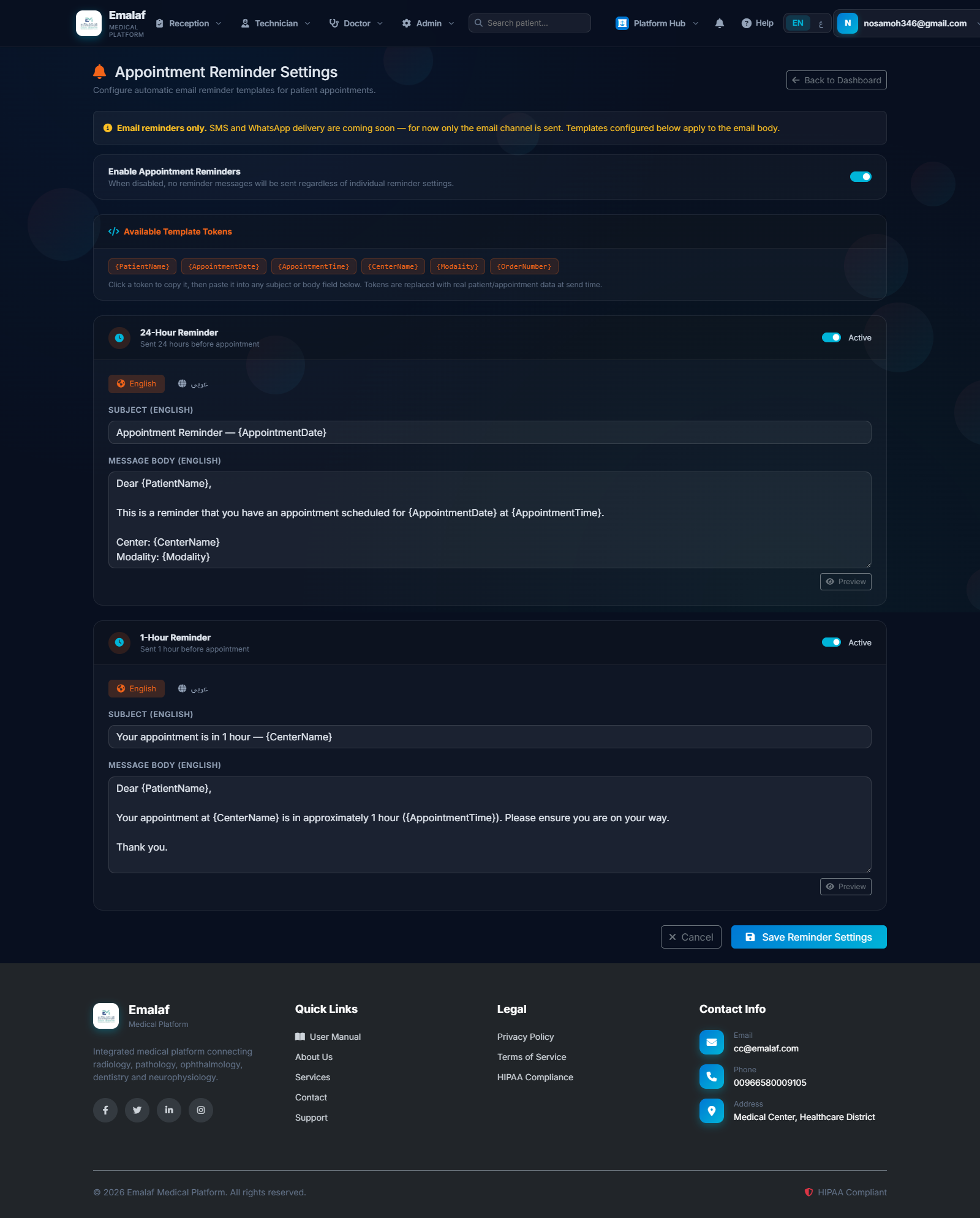
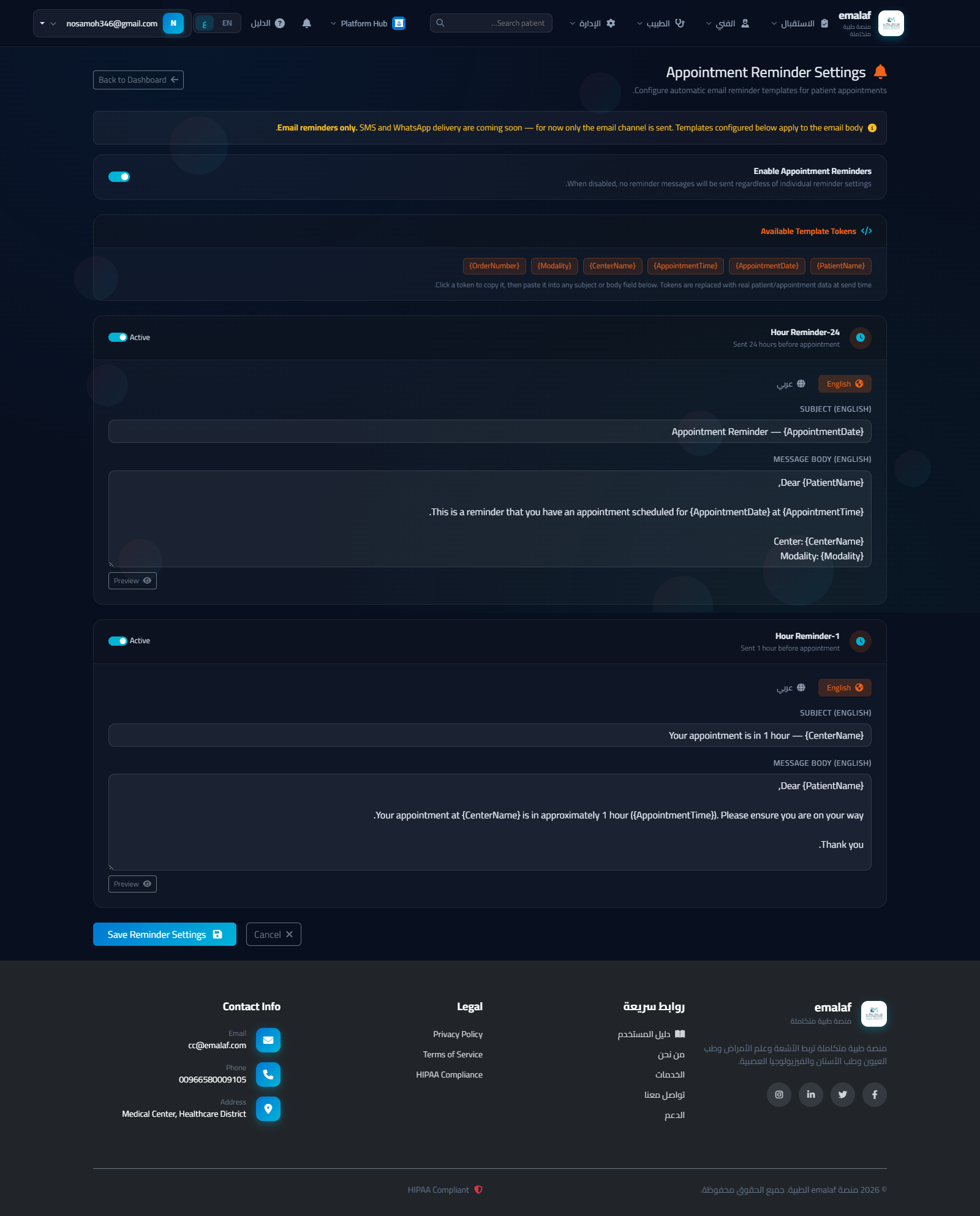
Each reminder has separate English and Arabic tab panels. Each panel contains a Subject field (for email subject / SMS title) and a Body field (message text). Templates support the following tokens that are replaced with real values at send time:
| Token | Replaced with |
|---|---|
{PatientName} | Patient's full name |
{AppointmentDate} | Date of the appointment (formatted) |
{AppointmentTime} | Time of the appointment |
{CenterName} | Radiology center name |
{Modality} | Imaging modality (e.g. MRI, CT) |
{OrderNumber} | System order reference number |
Click any token chip at the top of the page to copy it to the clipboard, then paste it into the subject or body field.
Use the Preview button on each reminder card to see how the message will look with sample patient data before saving.
يمكن للمديرين ضبط محتوى رسائل التذكير التلقائية المُرسَلة للمرضى قبل مواعيدهم. الوصول عبر قائمة الإدارة ← إعدادات التذكير (أو مباشرة عبر /Admin/ReminderSettings).
المفتاح الرئيسي
مفتاح تفعيل تذكيرات المواعيد في الأعلى يُمكّن أو يُعطّل جميع التذكيرات عالمياً. عند التعطيل لا تُرسَل أي رسائل بغض النظر عن الإعدادات الفردية.
جدول التذكيرات
بالإعداد الافتراضي يوجد خانتان للتذكير:
- تذكير 24 ساعة — يُرسَل يوم الموعد السابق
- تذكير ساعة واحدة — يُرسَل قبل 60 دقيقة من الموعد
يمكن تفعيل/تعطيل كل تذكير مستقلاً بمفتاحه الخاص.
قوالب الرسائل
لكل تذكير لوحتا تبويب منفصلتان: إنجليزي وعربي. كل لوحة تحتوي على حقل الموضوع (عنوان البريد/الرسالة) وحقل نص الرسالة. القوالب تدعم الرموز التالية التي تُستبدل بقيم حقيقية عند الإرسال:
| الرمز | يُستبدل بـ |
|---|---|
{PatientName} | اسم المريض الكامل |
{AppointmentDate} | تاريخ الموعد (منسَّق) |
{AppointmentTime} | وقت الموعد |
{CenterName} | اسم مركز الأشعة |
{Modality} | نوع الجهاز (مثل MRI أو CT) |
{OrderNumber} | رقم مرجع الطلب في النظام |
انقر أي رمز في الجزء العلوي من الصفحة لنسخه، ثم الصقه في حقل الموضوع أو نص الرسالة.
استخدم زر معاينة في كل بطاقة تذكير لمشاهدة شكل الرسالة ببيانات مريض نموذجية قبل الحفظ.
DICOM Viewer — Keyboard Shortcutsمشغّل DICOM — اختصارات لوحة المفاتيح
| Action | الإجراء | Shortcut |
|---|---|---|
| Zoom in | تكبير | + or scroll up |
| Zoom out | تصغير | - or scroll down |
| Rotate 90° | تدوير 90° | R |
| Invert colors | عكس الألوان | I |
| Fullscreen | ملء الشاشة | Double-click / F |
| Close fullscreen | إغلاق ملء الشاشة | Esc |
| Pan | إزاحة | Click & drag |
| Reset view | إعادة ضبط العرض | Reset button in toolbar |
Image Viewers (Ophthalmo / Dentistry)مشغّلات الصور (عيون / أسنان)
All image viewers share the same controls: scroll to zoom, drag to pan, double-click for fullscreen, R to rotate, I to invert. Use the type filter pills at the top of the sidebar to show only images of a specific type (e.g. OCT, OPG). Ophthalmology viewer has separate OD/OS panes — use the pane header tabs to switch focus.
تشترك جميع مشغّلات الصور في نفس الضوابط: التمرير للتكبير، السحب للإزاحة، النقر المزدوج لملء الشاشة، R للتدوير، I للعكس. استخدم أزرار تصفية النوع أعلى الشريط الجانبي لعرض صور نوع محدد فقط (مثل OCT أو OPG). مشغّل العيون يحتوي على جزأين منفصلين OD/OS.
Print & PDF Exportالطباعة وتصدير PDF
Every finalized report has a Print PDF button. This opens a print-optimized page (A4, no navigation chrome). To save as PDF:
- Click Print PDF
- Browser print dialog opens → select Save as PDF as destination
- Set paper size to A4, margins None or Minimum
- Enable Background graphics to preserve colors and logos
- Save
Append ?autoprint=1 to the print URL to trigger the print dialog automatically on page load — useful for kiosk or automated workflows.
كل تقرير نهائي يحتوي على زر طباعة PDF. يفتح هذا صفحة محسَّنة للطباعة (A4، بدون شريط تنقل). لحفظها كـ PDF:
- اضغط طباعة PDF
- تفتح نافذة طباعة المتصفح ← اختر حفظ كـ PDF وجهةً
- حدد حجم الورق A4 والهوامش بلا أو الحد الأدنى
- فعّل رسومات الخلفية للحفاظ على الألوان والشعارات
- حفظ
أضف ?autoprint=1 لعنوان الطباعة لتشغيل نافذة الطباعة تلقائياً عند فتح الصفحة — مفيد لأكشاك الطباعة.
Patient Timelineالجدول الزمني للمريض
The Patient Timeline aggregates all of a patient's visits, studies, cases, and reports across all modules into a single chronological view.
Access: any module's case/exam/study detail page → "Patient Timeline" button, or directly via /PatientTimeline?id={patientId}.
Use the module filter pills at the top to show only a specific specialty. Each event card links directly to the relevant detail page.
يجمع الجدول الزمني للمريض جميع زياراته ودراساته وحالاته وتقاريره عبر جميع الوحدات في عرض زمني واحد.
الوصول: صفحة تفاصيل أي حالة/فحص/دراسة ← زر "الجدول الزمني للمريض"، أو مباشرة عبر /PatientTimeline?id={patientId}.
استخدم أزرار تصفية الوحدة أعلى الصفحة لعرض تخصص محدد فقط. كل بطاقة حدث ترتبط مباشرة بصفحة التفاصيل.
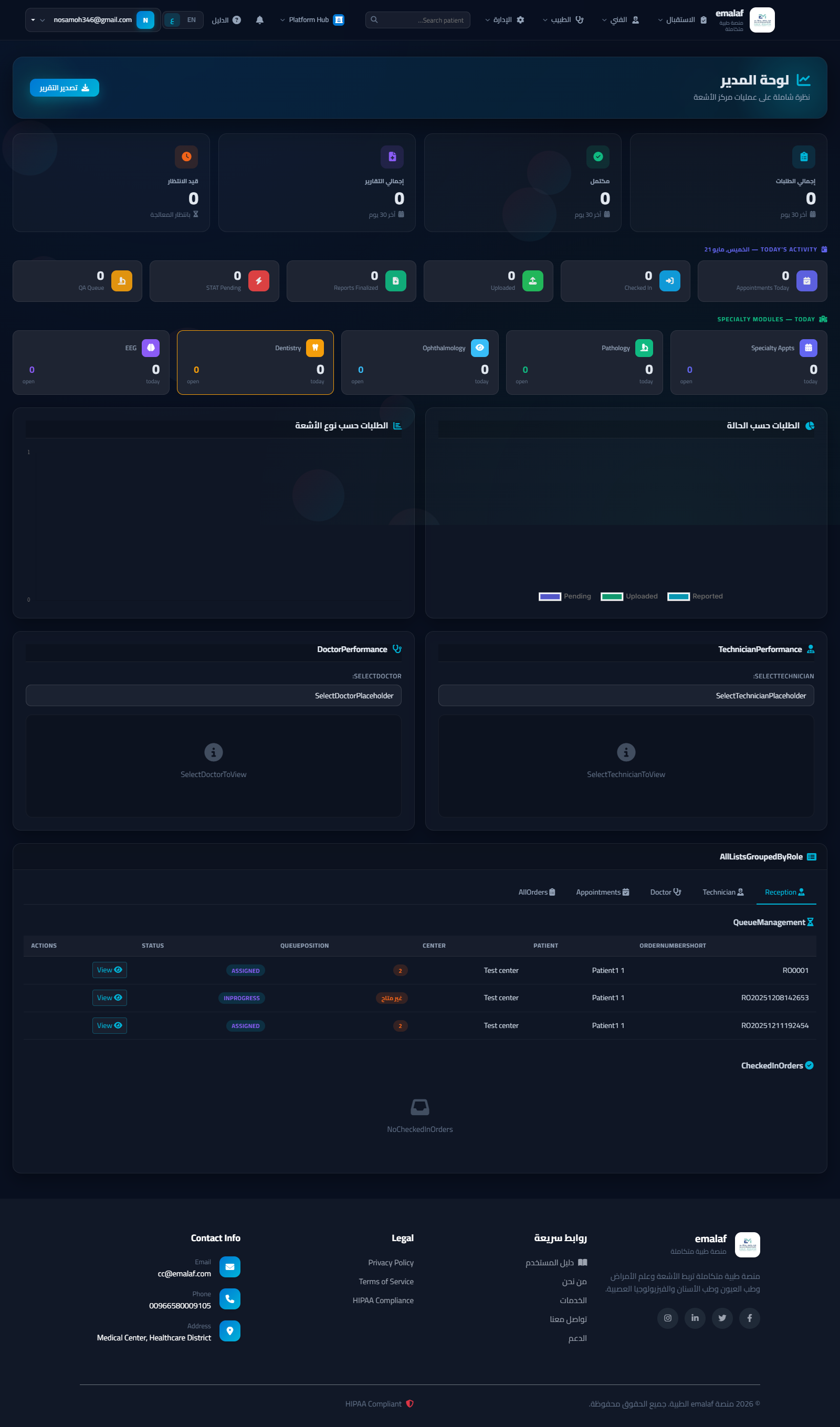
Admin Dashboard — Today's KPIs لوحة الإدارة — مؤشرات اليوم
The admin dashboard now shows a Today's Activity row beneath the summary KPI cards, with six real-time counters:
- Appointments Today — scheduled for today's date.
- Checked-In Today — patients who completed check-in.
- Uploaded Today — DICOM studies uploaded.
- Reported Today — reports finalized.
- STAT Pending — STAT-priority orders awaiting reading. Highlighted in red when > 0.
- QA Queue — studies in the QA / upload queue.
Cards auto-refresh on page load. Navigate to Admin → Dashboard to view.
تعرض لوحة الإدارة الآن صفًا "نشاط اليوم" تحت بطاقات الأداء الرئيسية، يحتوي على ستة عدّادات فورية:
- مواعيد اليوم — المحددة لتاريخ اليوم.
- تسجيل الوصول اليوم — المرضى الذين أتموا تسجيل الوصول.
- تحميل اليوم — الدراسات المُحمَّلة.
- تقارير اليوم — التقارير التي أُنجزت.
- STAT معلّق — الأوامر ذات الأولوية القصوى. تُبرز باللون الأحمر عند وجودها.
- قائمة QA — الدراسات في قائمة انتظار مراجعة الجودة.
تتحدث البطاقات عند تحميل الصفحة. انتقل إلى الإدارة ← لوحة التحكم.
iCal Calendar Export تصدير التقويم iCal
Patients can add any upcoming appointment to their personal calendar (Google Calendar, Outlook, Apple Calendar) with a single click.
- Go to Patient Portal → My Appointments.
- Click Add to Calendar on any future appointment.
- The browser downloads an
.icsfile. Open it to add the event to your calendar app.
The event includes the appointment date, time, location (center name), and a 1-hour reminder alarm.
يمكن للمرضى إضافة أي موعد قادم إلى تقويمهم الشخصي (Google أو Outlook أو Apple) بنقرة واحدة.
- انتقل إلى بوابة المريض ← مواعيدي.
- انقر إضافة إلى التقويم على أي موعد قادم.
- سيُنزّل المتصفح ملف
.ics. افتحه لإضافة الحدث إلى تطبيق التقويم.
يتضمن الحدث التاريخ والوقت والموقع (اسم المركز) وتنبيهًا قبل ساعة.
Doctor TAT Performance Report تقرير أداء الطبيب (وقت الاستجابة)
Admins can view a turnaround time (TAT) performance table for all radiologists. Navigate to Admin → Doctor TAT Report.
- Avg TAT (h) — average hours from upload to report finalization.
- STAT Compliance % — percentage of STAT studies reported within 1 hour.
- Overdue Count — studies that took more than 48 hours.
- Total Reports — number of finalized reports in the period.
Use the date-range filter to narrow the period, or click Export Excel for a spreadsheet.
يمكن للمديرين الاطلاع على جدول أداء وقت الاستجابة لجميع أطباء الأشعة. انتقل إلى الإدارة ← تقرير أداء الطبيب.
- متوسط وقت الاستجابة (ساعة) — متوسط الساعات من التحميل إلى إنهاء التقرير.
- نسبة الامتثال STAT % — نسبة دراسات STAT التي أُعِدَّ تقريرها خلال ساعة.
- عدد المتأخرة — الدراسات التي استغرقت أكثر من 48 ساعة.
- إجمالي التقارير — عدد التقارير المُنجزة في الفترة.
استخدم فلتر نطاق التاريخ لتضييق الفترة، أو انقر تصدير Excel.
Bulk Doctor Assignment التعيين الجماعي للطبيب
Admins can reassign multiple orders to a different doctor from the doctor worklist in one operation.
- Go to Doctor → Appointment Orders (logged in as Admin).
- A Bulk Assign bar appears at the top. Check the boxes next to the desired orders.
- Select the target doctor from the drop-down, then click Assign.
- A confirmation shows how many orders were updated.
This feature is only visible to users with the Admin role.
يمكن للمديرين إعادة تعيين أوامر متعددة لطبيب آخر من قائمة الأعمال دفعةً واحدة.
- انتقل إلى الطبيب ← أوامر المواعيد (مسجَّل دخول كمدير).
- يظهر شريط التعيين الجماعي أعلى الصفحة. ضع علامة بجانب الأوامر المطلوبة.
- اختر الطبيب المستهدف من القائمة ثم انقر تعيين.
- تظهر رسالة تأكيد بعدد الأوامر التي تم تحديثها.
هذه الميزة مرئية فقط للمستخدمين بدور المدير.
Print Queue for Finalized Reports قائمة انتظار الطباعة للتقارير النهائية
The print queue gives admins a consolidated view of all finalized reports ready for physical printing.
- Navigate to Admin → Print Queue.
- Use the quick search box to filter by patient name or code.
- Check individual rows or use Select All, then click Print All Visible to open each report's print view in a new browser tab.
تمنح قائمة الطباعة المديرين عرضًا موحدًا لجميع التقارير النهائية الجاهزة للطباعة الورقية.
- انتقل إلى الإدارة ← قائمة الطباعة.
- استخدم مربع البحث السريع للتصفية باسم المريض أو كوده.
- ضع علامة على الصفوف المطلوبة أو استخدم تحديد الكل، ثم انقر طباعة الكل المرئي لفتح عرض الطباعة لكل تقرير في تبويب جديد.
Patient Appointment — Cancel & Reschedule إلغاء الموعد وطلب إعادة الجدولة
Patients can manage their upcoming appointments directly from the patient portal.
Cancel
- Go to My Appointments.
- Click Cancel on a future, non-cancelled appointment.
- Confirm the cancellation. The appointment status changes to Cancelled.
Request Reschedule
- Click Request Reschedule and enter a preferred new date/note.
- The status changes to RescheduleRequested; reception staff will contact you to confirm the new time.
Note: Actions are only available for appointments that are in the future and not yet cancelled or already rescheduled.
يمكن للمرضى إدارة مواعيدهم القادمة مباشرةً من بوابتهم.
الإلغاء
- انتقل إلى مواعيدي.
- انقر إلغاء على موعد قادم غير ملغى.
- أكِّد الإلغاء. تتغير حالة الموعد إلى ملغى.
طلب إعادة الجدولة
- انقر طلب إعادة الجدولة وأدخل التاريخ المفضل / ملاحظة.
- تتغير الحالة إلى طلب إعادة جدولة؛ سيتواصل موظفو الاستقبال لتأكيد الوقت الجديد.
ملاحظة: الإجراءات متاحة فقط للمواعيد المستقبلية غير الملغاة وغير المُعاد جدولتها بالفعل.
Order Status History Trail مسار حالة الأمر
Every status change on a radiology order is recorded in a history trail, providing full traceability for compliance and auditing.
- Each record captures: From Status → To Status, who made the change, and the timestamp.
- Stored in the
RIS_OrderStatusHistorytable. - Admins and doctors can view the trail on the order detail / report page.
This supports QA investigations and incident reviews.
يُسجَّل كل تغيير في حالة أمر الأشعة في مسار تاريخي، مما يوفر تتبعًا كاملاً للامتثال والتدقيق.
- يسجل كل سجل: الحالة السابقة ← الحالة الجديدة، من أجرى التغيير، والطابع الزمني.
- مخزَّن في جدول
RIS_OrderStatusHistory. - يمكن للمديرين والأطباء الاطلاع على المسار في صفحة تفاصيل الأمر.
يدعم تحقيقات ضمان الجودة ومراجعات الحوادث.
Reminder Send Log سجل إرسال التذكيرات
The reminder log tracks every automated appointment reminder dispatched by the system. Navigate to Admin → Reminder Log.
| Column | Description |
|---|---|
| Sent At | Timestamp when the reminder was sent. |
| Type | 24h (day-before) or 1h (one-hour-before). |
| Channel | SMS, Email, or WhatsApp. |
| Status | Sent (green) or Failed (red). |
| Preview | First line of the message body. |
Use the date-range and status filters to narrow results. Stats at the top show Total / Delivered / Failed counts.
يتتبع سجل التذكيرات كل تذكير موعد آلي أرسله النظام. انتقل إلى الإدارة ← سجل التذكيرات.
| العمود | الوصف |
|---|---|
| وقت الإرسال | الطابع الزمني للإرسال. |
| النوع | 24 ساعة (قبل اليوم) أو 1 ساعة (قبل ساعة). |
| القناة | رسالة نصية أو بريد إلكتروني أو واتساب. |
| الحالة | مُرسَل (أخضر) أو فشل (أحمر). |
| معاينة | السطر الأول من نص الرسالة. |
استخدم فلاتر التاريخ والحالة. تعرض الإحصائيات أعلى الصفحة الإجمالي / المُسلَّم / الفاشل.
Second Opinion Request طلب رأي ثانٍ
Requesting (Doctor)
- Open any finalized report in the report writing screen.
- Click Request 2nd Opinion (orange button, bottom of form).
- Optionally select a specific radiologist, add notes, and click Submit Request.
Reviewing (Assigned Doctor)
- The assigned doctor sees the request under Doctor → Second Opinion Requests.
- Click Submit Opinion, type the findings, and submit.
- The second opinion report is linked to the original and marked Completed.
Admins can see all pending requests; doctors see only those assigned to them.
الطلب (الطبيب)
- افتح أي تقرير منجز في شاشة كتابة التقرير.
- انقر طلب رأي ثانٍ (الزر البرتقالي أسفل النموذج).
- اختر طبيب أشعة محددًا اختياريًا، أضف ملاحظات، وانقر إرسال الطلب.
المراجعة (الطبيب المعيَّن)
- يرى الطبيب المعيَّن الطلب في الطبيب ← طلبات الرأي الثاني.
- انقر إرسال الرأي، اكتب النتائج، وأرسل.
- يُربط تقرير الرأي الثاني بالأصل ويُوسَم بـ مكتمل.
يرى المديرون جميع الطلبات المعلقة؛ الأطباء يرون فقط ما عُيِّن لهم.
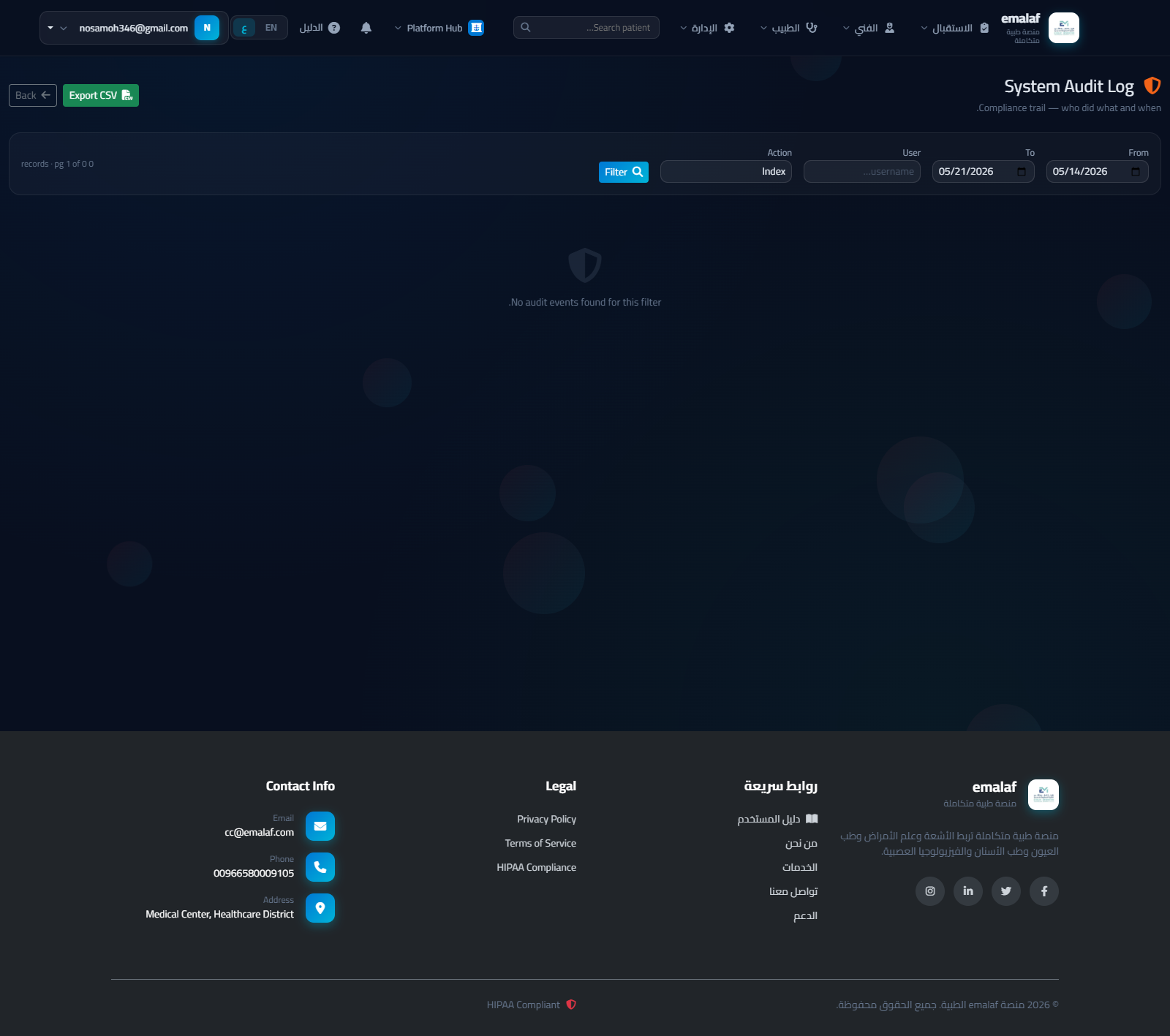
Audit Log Viewer عارض سجل التدقيق
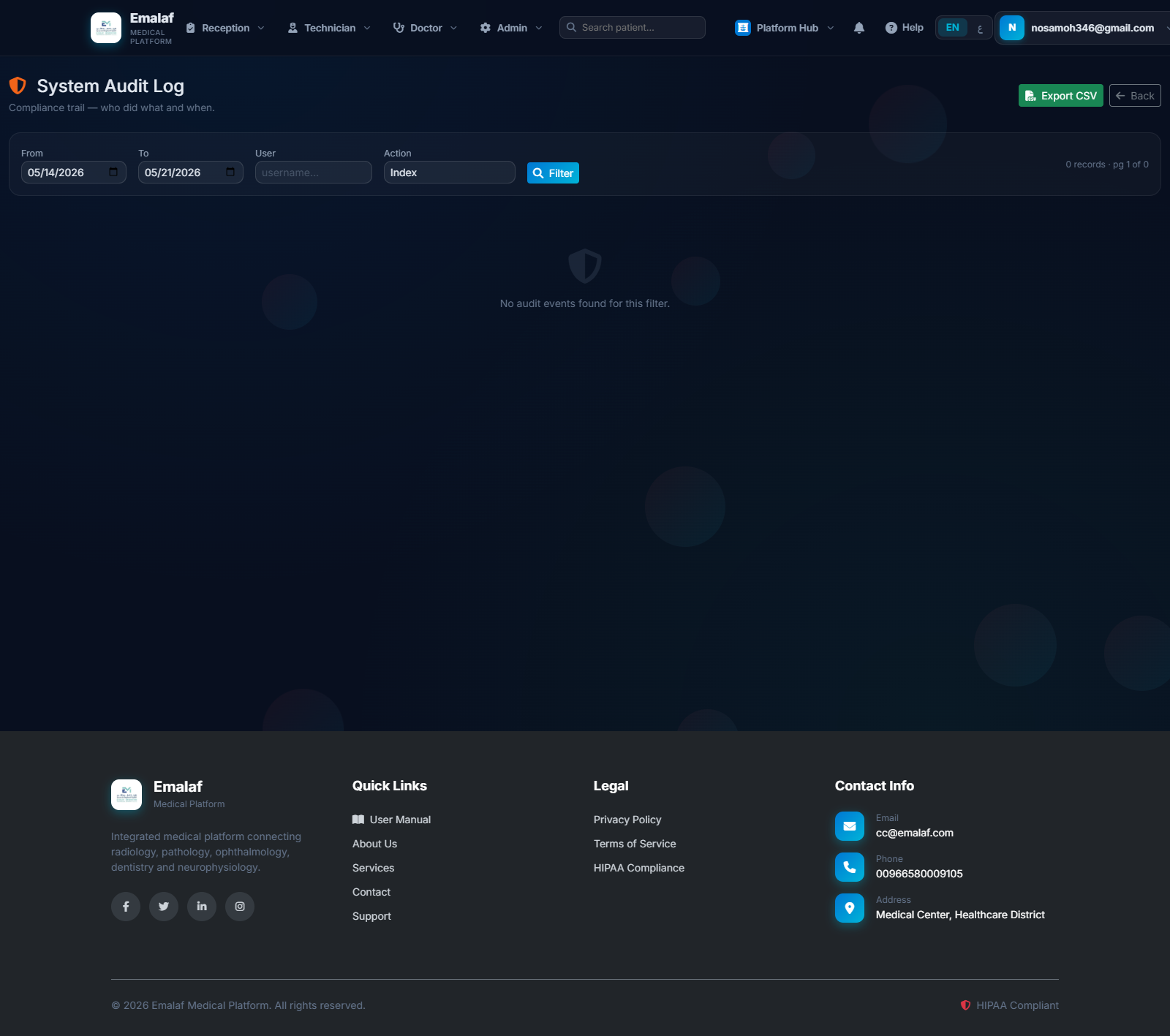
The audit log provides a complete compliance trail of every significant action in the system. Navigate to Admin → Audit Log.
- Filter by date range, username, or action type (e.g., ReportFinalized, Login, Delete).
- Action colors: green = finalized, red = delete, blue = login.
- Click Export CSV to download the filtered set for compliance reporting.
- Pagination: 50 rows per page.
يوفر سجل التدقيق مسارًا كاملاً للامتثال لكل إجراء مهم في النظام. انتقل إلى الإدارة ← سجل التدقيق.
- تصفية حسب نطاق التاريخ أو اسم المستخدم أو نوع الإجراء (مثلاً ReportFinalized، Login، Delete).
- ألوان الإجراءات: أخضر = إنهاء، أحمر = حذف، أزرق = دخول.
- انقر تصدير CSV لتنزيل المجموعة المفلترة لأغراض الامتثال.
- ترقيم الصفحات: 50 صفًا في الصفحة.
Patient Consent e-Signature التوقيع الإلكتروني على موافقة المريض
A digital consent form is now captured at check-in before the patient is assigned to a technician.
- Reception staff clicks Check In for a patient.
- A Patient Consent Form modal appears with the procedure consent text.
- The patient signs in the signature box using a mouse, touch screen, or stylus.
- Click Sign & Continue Check-In. The signature is saved as a base-64 PNG image against the order.
- The technician assignment modal then opens as usual.
Signatures are stored in the RIS_ConsentForms table and are accessible for compliance review.
يُجمَع الآن نموذج موافقة رقمي عند تسجيل الوصول قبل تعيين المريض لفني الأشعة.
- ينقر موظف الاستقبال على تسجيل الوصول للمريض.
- تظهر نافذة نموذج موافقة المريض مع نص الموافقة على الإجراء.
- يوقّع المريض في مربع التوقيع باستخدام الفأرة أو الشاشة اللمسية أو القلم.
- انقر التوقيع ومتابعة تسجيل الوصول. يُحفظ التوقيع كصورة PNG بصيغة base-64 مع الأمر.
- تفتح بعد ذلك نافذة تعيين الفني كالمعتاد.
تُخزَّن التوقيعات في جدول RIS_ConsentForms ويمكن الوصول إليها لمراجعة الامتثال.
Critical Result Auto-Escalation (Tiered) Live التصعيد التلقائي المتدرّج للنتائج الحرجة مُفعَّل
The platform walks every unacknowledged critical radiology finding through a configurable escalation ladder. Each tier fires at most once per record and notifies a different set of recipients — typically reporting doctor first, then admin, then medical director.
How it works
- A background service checks every 15 minutes (configurable via
CheckIntervalMinutes). - For every
RIS_CriticalResultAckwith Status = Open, the service finds the highest tier whoseAfterHoursthreshold has been crossed and has not yet fired for this record. - Tier 1 by default notifies the reporting doctor automatically (resolved from the report's doctor email).
- Each subsequent tier emails the addresses listed under its
Emailsarray. - After a successful send, the record's
LastEscalatedTierandLastEscalatedAtare updated so the same tier never re-fires.
Default ladder (configurable)
| Tier | Fires after | Recipients |
|---|---|---|
| 1 | 1 hour | Reporting doctor (auto) |
| 2 | 2 hours | Admin email(s) |
| 3 | 4 hours | Medical director email(s) |
Admin Settings Page
Navigate to Admin → Critical Escalation to:
- See the configured tier ladder rendered as cards (label, threshold, recipients).
- See every open critical result with: age, last tier reached, next tier ETA.
- Acknowledge individual items directly from the table.
- Click Trigger Escalation Check Now to run a manual pass.
Configuration
All tiers live in appsettings.json under "CriticalEscalation":
"CriticalEscalation": {
  "CheckIntervalMinutes": 15,
  "NotifyReportingDoctor": true,
  "Tiers": [
    { "Tier": 1, "AfterHours": 1, "Label": "Reporting Doctor",  "Emails": [] },
    { "Tier": 2, "AfterHours": 2, "Label": "Admin",             "Emails": [ "admin@emalaf.com" ] },
    { "Tier": 3, "AfterHours": 4, "Label": "Medical Director",  "Emails": [ "medical-director@emalaf.com" ] }
  ]
}
Database
Schema migration 023_CriticalResultEscalationTracking.sql adds two columns to RIS_CriticalResultAcks: LastEscalatedAt and LastEscalatedTier. Both are idempotent (IF NOT EXISTS) and safe to re-run.
تقود المنصة كل نتيجة أشعة حرجة غير مُقرَّة عبر سلّم تصعيد قابل للضبط. تُطلَق كل درجة مرة واحدة فقط لكل سجل، وتُرسَل لمجموعة مختلفة من المستلمين — عادةً الطبيب المُحرِّر للتقرير أولاً، ثم المدير، ثم المدير الطبي.
كيف يعمل
- تفحص خدمة خلفية كل 15 دقيقة (قابلة للتعديل عبر
CheckIntervalMinutes). - لكل سجل
RIS_CriticalResultAckبحالة Open، تبحث الخدمة عن أعلى درجة تجاوز عمر السجل عتبتهاAfterHoursولم تُطلَق بعد. - الدرجة 1 افتراضياً تُخطر الطبيب المُحرِّر تلقائياً (يُحلَّل بريده من تقرير الأشعة).
- كل درجة لاحقة ترسل لعناوين قائمة
Emailsالخاصة بها. - بعد الإرسال الناجح يُحدَّث
LastEscalatedTierوLastEscalatedAtفلا تتكرر الدرجة نفسها أبداً.
السلّم الافتراضي (قابل للضبط)
| الدرجة | تُطلَق بعد | المستلمون |
|---|---|---|
| 1 | ساعة | الطبيب المُحرِّر (تلقائي) |
| 2 | ساعتان | بريد المدير |
| 3 | 4 ساعات | بريد المدير الطبي |
صفحة إعدادات المدير
انتقل إلى الإدارة ← تصعيد النتائج الحرجة لكي:
- ترى سلّم التصعيد المُعدّ كبطاقات (الاسم، العتبة، المستلمون).
- ترى كل نتيجة حرجة مفتوحة مع: العمر، آخر درجة وصلت إليها، وقت الدرجة التالية.
- تُقِرّ العناصر مباشرة من الجدول.
- تنقر تفعيل فحص التصعيد الآن لتنفيذ تمريرة يدوية.
الضبط
كل الدرجات في appsettings.json تحت "CriticalEscalation":
"CriticalEscalation": {
  "CheckIntervalMinutes": 15,
  "NotifyReportingDoctor": true,
  "Tiers": [
    { "Tier": 1, "AfterHours": 1, "Label": "Reporting Doctor",  "Emails": [] },
    { "Tier": 2, "AfterHours": 2, "Label": "Admin",             "Emails": [ "admin@emalaf.com" ] },
    { "Tier": 3, "AfterHours": 4, "Label": "Medical Director",  "Emails": [ "medical-director@emalaf.com" ] }
  ]
}
قاعدة البيانات
السكربت 023_CriticalResultEscalationTracking.sql يضيف عمودَيْن إلى RIS_CriticalResultAcks: LastEscalatedAt و LastEscalatedTier. كلاهما محمي بـ IF NOT EXISTS وآمن لإعادة التشغيل.
May 2026 — Auth Hardening & Honest Stubs Live مايو 2026 — تقوية تسجيل الدخول وعلامات «قريباً» الصريحة مُفعَّل
A platform-wide pass focused on production safety. Two themes: (1) real database-backed authentication replaced the legacy placeholder login, and (2) features that were silently stubbed are now clearly marked Soon in the UI instead of returning fake-success responses.
Authentication
- Real DB-backed login. The login form now queries
CommonUser+Role, verifies the password, and issues claims that reflect your actual database role. Previously a placeholder inferred your role from substrings in your email address. - Role-aware redirect. Doctor →
/DoctorReport/AppointmentOrders. Patient →/PatientPortal. Receptionist →/ReceptionCheckIn. Technician →/TechnicianUpload. Admin →/Admin/AdminDashboard. The four specialty roles land on their module home. - Role-name normalization. The legacy database had a typo (
"Recieption"→ now stored as"Receptionist") and a short form ("Technician"→ mapped to"Radiology Technician"). Both are handled automatically. - Database hardening script.
Scripts/024_AuthAndRoleHardening.sqladds the five missing platform roles (Radiology Technician, Pathologist, Ophthalmologist, Dentist, Neurophysiologist) and three login-path indexes.
Features now showing "Soon"
These features have a UI surface but no working backend yet. They are intentionally disabled until the backend ships, so you never click a button and get a 0-byte file or a fake "Success" toast.
- PDF report download Live — now generates a real PDF via headless Chromium. See the dedicated section below.
- DICOM measurement save / export Live — measurements are persisted server-side and reload with the study.
- SMS reminders Live — real Twilio integration, activates when Twilio env vars are set on the server.
- WhatsApp reminders Live — same Twilio integration, separate sender number.
- Insurance verification Soon — still manual mode. Waiting for NPHIES sandbox credentials to activate real payer API.
Honest failure responses
Behind the scenes, the matching service methods now return an explicit { success: false, notImplemented: true } response (or log a warning), instead of falsely signalling success. This means:
- Audit logs accurately reflect what was sent vs dropped.
- Future integrations can detect "not yet wired" responses programmatically.
- Operations teams see real-time warnings in logs when stubbed features are exercised.
تحديث شامل يركّز على جاهزية الإنتاج. محوران: (1) تسجيل دخول حقيقي عبر قاعدة البيانات يحل محل البديل المؤقت القديم، و(2) الميزات التي كانت تُظهر نجاحاً وهمياً صارت معلَّمة قريباً بشكل واضح في الواجهة.
تسجيل الدخول
- تسجيل دخول حقيقي من قاعدة البيانات. النموذج الآن يبحث في جدولَي
CommonUserوRoleويتحقق من كلمة المرور ويُصدر مطالبات تعكس دور المستخدم الحقيقي. سابقاً كان دورك يُستنتج من أجزاء من بريدك الإلكتروني. - توجيه مدرك للدور. الطبيب ←
/DoctorReport/AppointmentOrders. المريض ←/PatientPortal. الاستقبال ←/ReceptionCheckIn. الفنّي ←/TechnicianUpload. المدير ←/Admin/AdminDashboard. وكل دور تخصصي يصل إلى صفحة وحدته. - توحيد أسماء الأدوار. قاعدة البيانات القديمة كان فيها خطأ إملائي (
"Recieption"← الآن"Receptionist") واسم مختصر ("Technician"← يُترجم إلى"Radiology Technician"). كل ذلك يتم تلقائياً. - سكريبت تقوية قاعدة البيانات. الملف
Scripts/024_AuthAndRoleHardening.sqlيضيف الأدوار الخمسة الناقصة (فنّي الأشعة، أخصائي علم الأمراض، طبيب العيون، طبيب الأسنان، أخصائي تخطيط الدماغ) وثلاث فهارس لتسريع تسجيل الدخول.
ميزات معلَّمة الآن «قريباً»
هذه الميزات لها واجهة لكن لا توجد خلفية عاملة بعد. تم تعطيلها عمداً حتى تكتمل الخلفية، بحيث لا تضغط زراً فتحصل على ملف فارغ أو رسالة نجاح كاذبة.
- تنزيل تقرير PDF مُفعَّل — يُولِّد PDF حقيقي عبر متصفح Chromium في الخلفية. راجع القسم المخصص أدناه.
- حفظ وتصدير قياسات الـ DICOM مُفعَّل — يتم حفظ القياسات على الخادم وتظهر تلقائياً عند فتح الدراسة لاحقاً.
- تذكيرات SMS مُفعَّل — تكامل حقيقي مع Twilio يعمل عند ضبط متغيرات البيئة على الخادم.
- تذكيرات واتساب مُفعَّل — نفس التكامل بمستخدم WhatsApp منفصل.
- التحقق من التأمين قريباً — لا يزال يدوياً، بانتظار بيانات NPHIES لتفعيل واجهة شركة التأمين الفعلية.
استجابات صادقة عند الفشل
على مستوى الخدمات في الخلفية، الميزات أعلاه ترجع الآن استجابة صريحة { success: false, notImplemented: true } أو تسجل تحذيراً في السجلّات، بدلاً من الإشارة الكاذبة بالنجاح. وهذا يعني:
- سجلات التدقيق تعكس بدقّة ما تم إرساله مقابل ما سقط.
- التكاملات المستقبلية يمكنها اكتشاف استجابات «غير مُنفَّذ بعد» برمجياً.
- فرق التشغيل ترى تحذيرات لحظية في السجلات عند استخدام ميزة مُعطَّلة.
Late May 2026 — Phase Complete Live أواخر مايو 2026 — اكتمال المرحلة مُفعَّل
The remainder of the roadmap shipped in a single multi-feature push. Every item below is live in production; activation notes are inline where an external account or env var is required.
1 · PDF report download — real PDFs
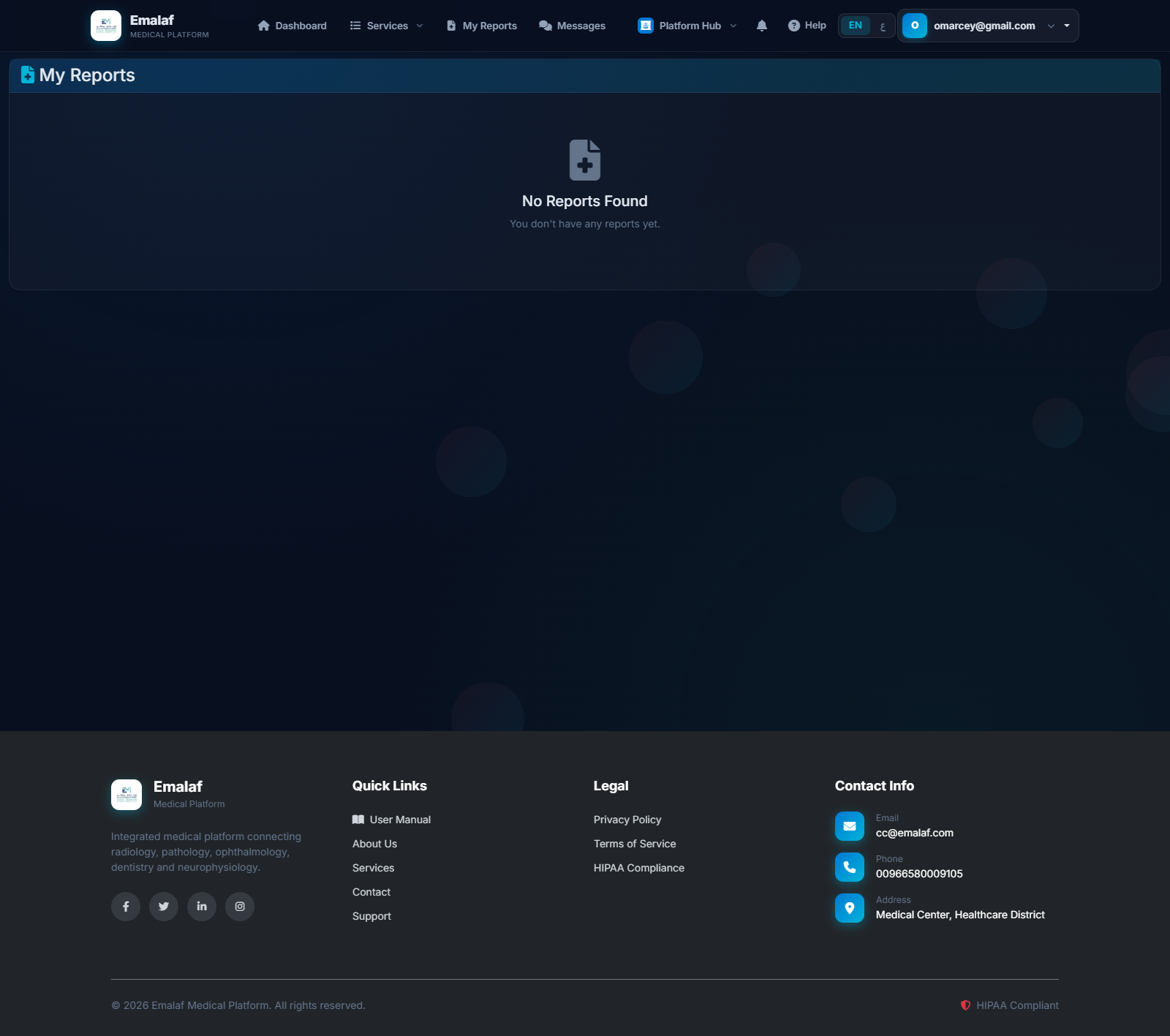
Patient screens now download an actual A4-formatted PDF (was a 0-byte placeholder before). Generated via headless Chromium from a print-optimized view. Includes the Emalaf header, patient panel, study panel, findings / impression / recommendations sections, doctor signature, and a QR code linking back to the online verification URL. Bilingual EN/AR — the PDF respects the current language toggle.
2 · DICOM measurements persist
When you annotate a DICOM study with the measurement tools (ruler / arrow / area / etc.), clicking Export now saves your work to the server. The next time anyone opens the same study, your measurements are loaded back into the viewer.
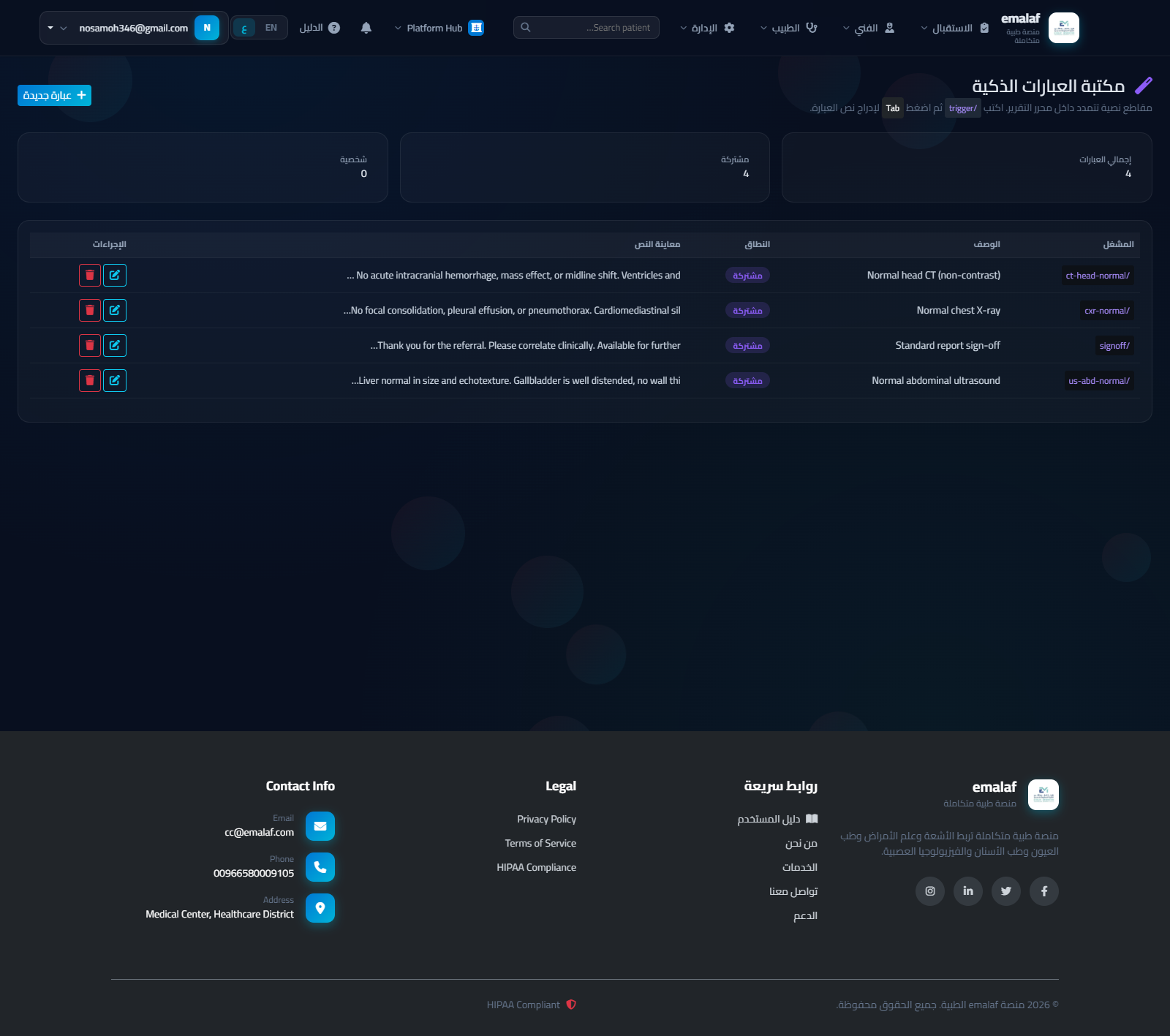
3 · Smart phrase library
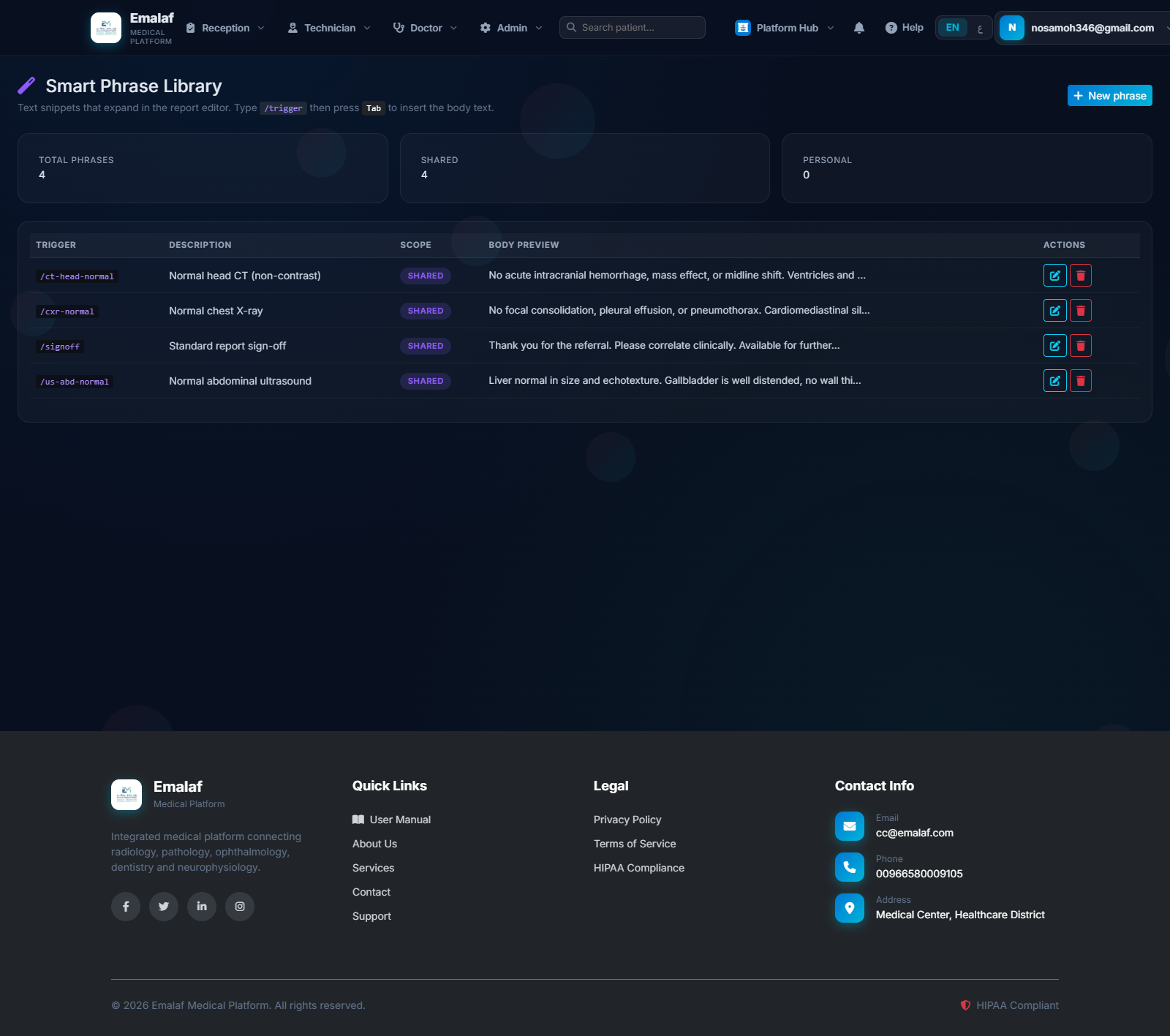
While writing a report, type /cxr-normal (or any other trigger) and press Tab. The trigger is replaced with the full body text. Four starter shared phrases ship out of the box: /cxr-normal, /ct-head-normal, /us-abd-normal, /signoff. Admins manage the library at /Admin/SmartPhrase; doctors can add personal phrases visible only to themselves.
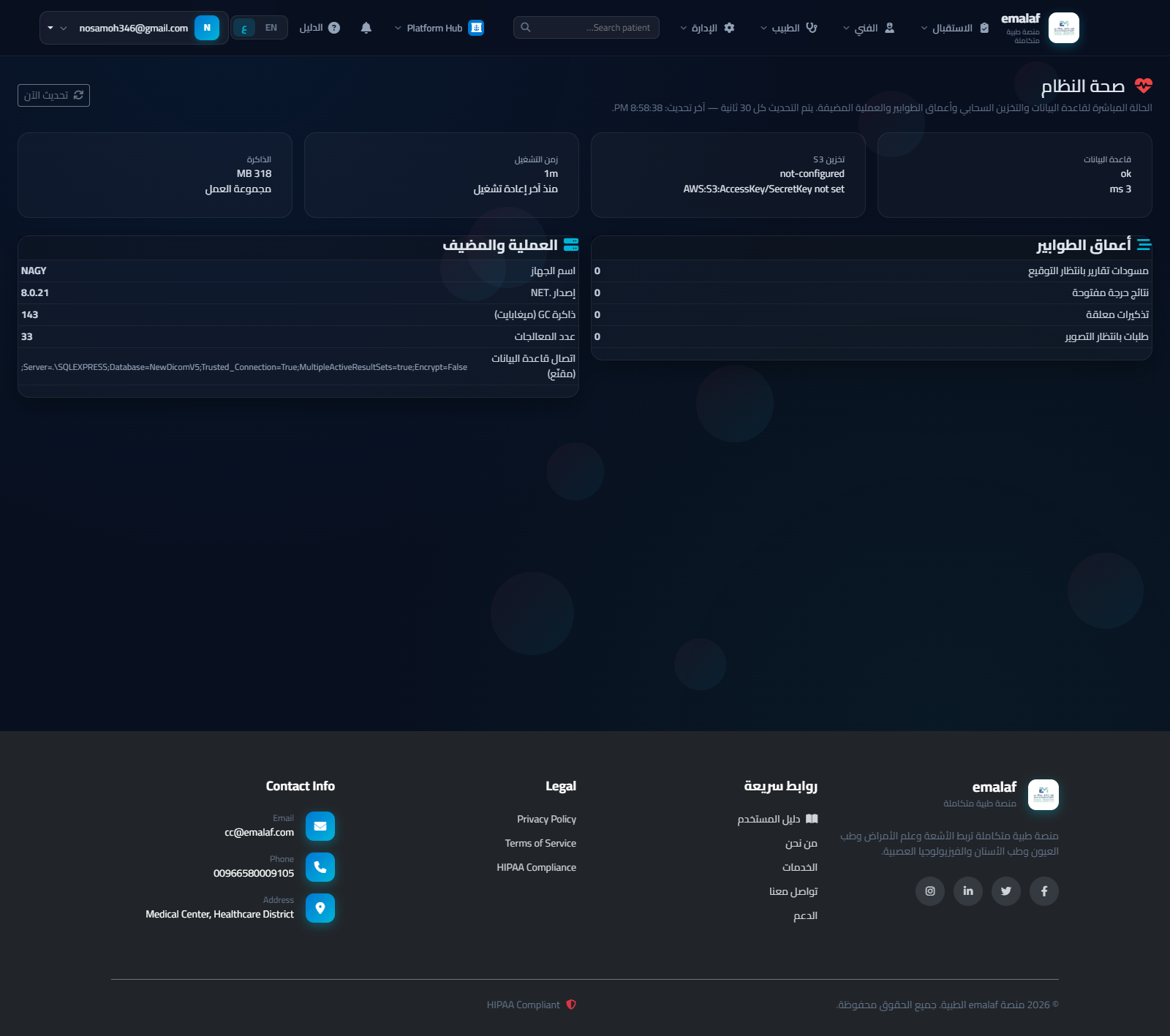
4 · System Health dashboard
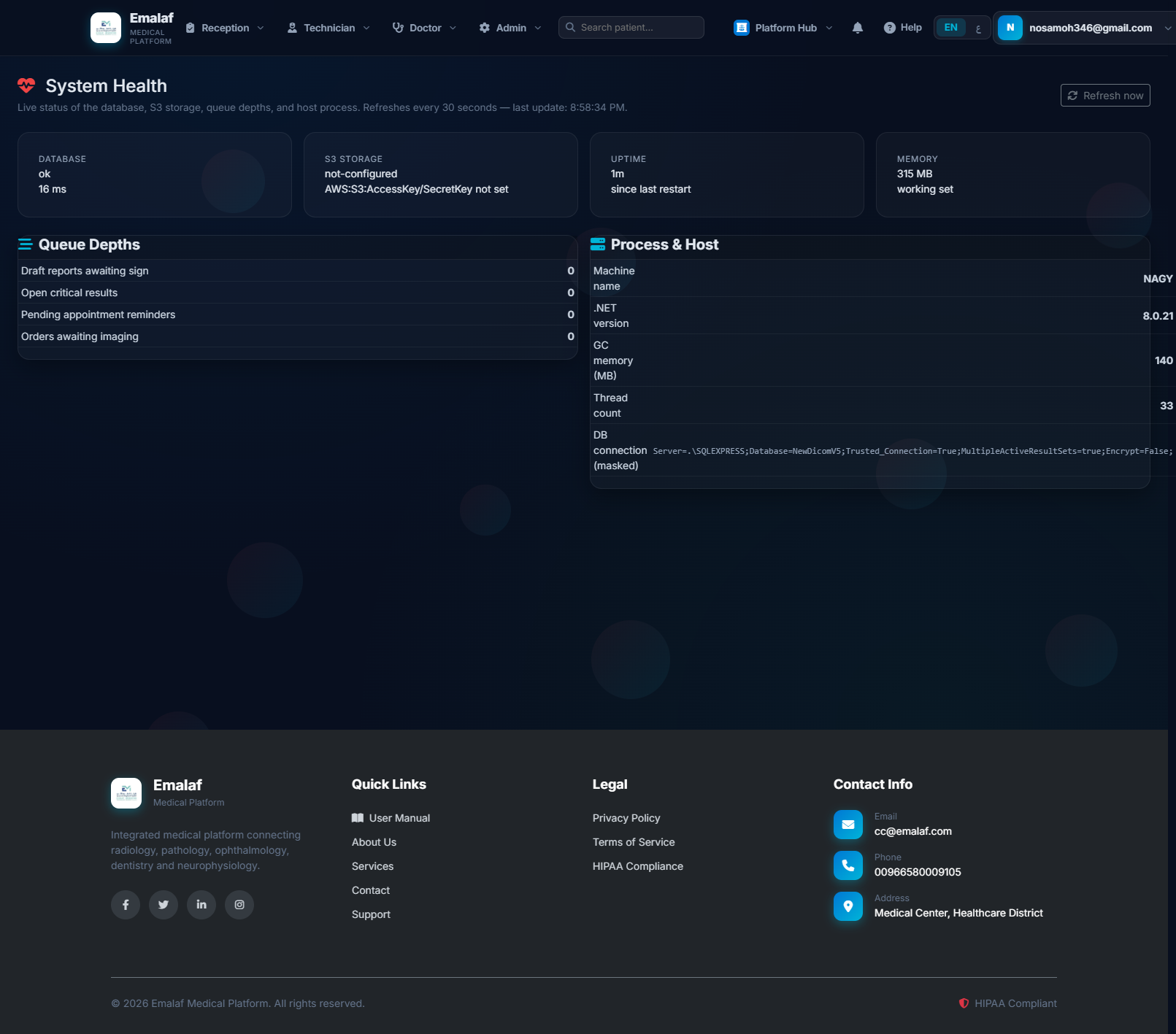
Admins get a live operational view at /Admin/SystemHealth — database latency, S3 connectivity, queue depths (draft reports / open critical results / pending reminders / orders awaiting imaging), and process info (uptime, GC memory, thread count). Auto-refreshes every 30 seconds. Useful for on-call to spot issues without grepping logs.
5 · SMS & WhatsApp reminders via Twilio
The notification pipeline now sends real SMS and WhatsApp messages once the Twilio environment variables are set on the server (TWILIO_ACCOUNT_SID, TWILIO_AUTH_TOKEN, TWILIO_FROM_NUMBER, TWILIO_WHATSAPP_FROM_NUMBER). When the variables are absent, the system logs a warning and continues sending email — the same behavior as before.
6 · Patient ↔ Doctor secure messaging
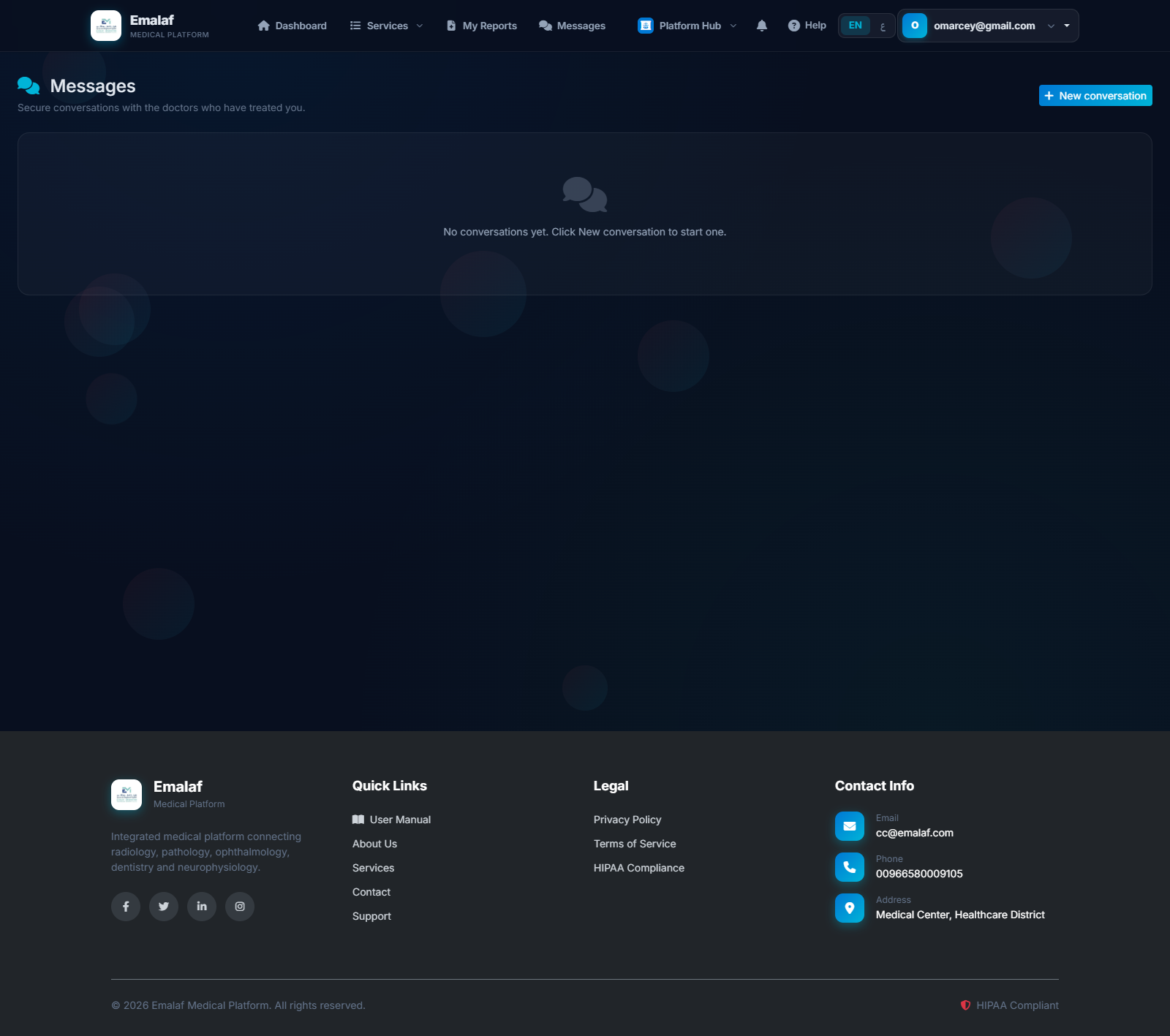
New Messages link in the navbar for both Patient and Doctor roles. Inbox shows your conversations sorted by latest activity. Open a thread to see the message timeline (chat-bubble UI) and reply. Patient sees only doctors who have treated them; doctor sees only patients with shared orders. File attachments up to 10 MB per message are uploaded to S3 and rendered as paperclip download chips in the timeline. Unread count surfaces in the notification bell.
7 · Voice dictation in the report editor
Each report textarea (Findings, Impression, Recommendations, Full Report) has a microphone icon next to its label. Click it to start dictating; click again to stop. Browser does the speech-to-text locally — no server roundtrip, no API key, no cost. Language follows the UI culture (en-US or ar-SA). On browsers that don't support speech (notably Safari on iOS), the mic icon is hidden automatically.
8 · PWA — install on home screen
The app is now installable as a Progressive Web App. On a phone, open the browser menu and choose Add to home screen — Emalaf installs an app icon and opens in standalone mode (no browser chrome). Includes app shortcuts for My Reports, Book Appointment, and Messages. No patient data is cached on the device — every API call goes to the server every time, so a lost phone never has PHI sitting on its disk.
9 · DZI viewer for high-resolution pathology slides
Whole-slide images (SVS, NDPI, big TIFF) are now tiled into a Deep-Zoom pyramid by a background worker and served from S3. A 1 GB slide takes 30–90 seconds to tile after upload. Once tiled, pathologists can pan and zoom in OpenSeadragon without downloading the entire file. Admins / pathologists trigger tiling for a specific file with POST /DicomView/QueueDziTiling?fileId=<id>; the system also exposes GET /DicomView/GetDziManifest?fileId= (status + manifest URL) and GET /DicomView/GetDziTile?fileId=&level=&col=&row= (individual tiles).
10 · PACS connector (bidirectional, fo-dicom)
Inbound: Emalaf accepts DICOM C-STORE pushes from modalities on TCP port 11112 (configurable). Received instances are stored in S3 and recorded with OrderType="PacsInbound" for admin reconciliation to a real order. The listener also responds to C-ECHO heartbeats from modalities.
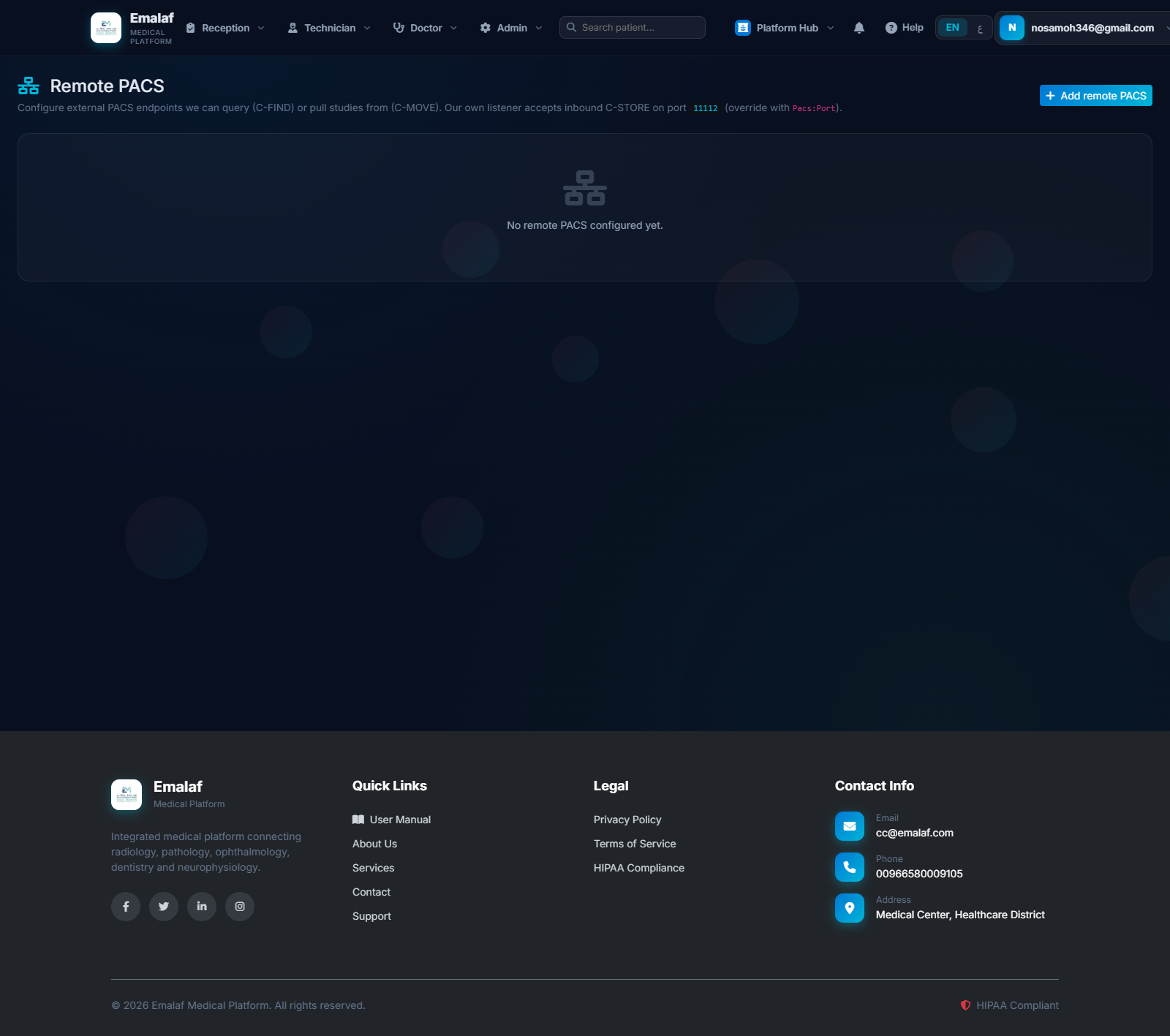
Outbound: Admins configure remote PACS endpoints at /Admin/PacsConfig. Each row holds host, port, our AE Title, and their AE Title. Click Ping to send a C-ECHO and confirm reachability. Admins can issue C-FIND queries to discover studies on the remote and C-MOVE requests to pull selected studies into Emalaf.
Activation: open inbound TCP 11112 on the app server's firewall, and ensure remote modalities / PACS systems whitelist our AE Title (default EMALAF) on their side.
11 · Authentication hardening
BCrypt-on-next-login: every successful sign-in re-hashes the plaintext password column in place, gradually migrating all accounts to BCrypt over ~90 days without forcing a mass password reset. Failed-login rate limit: 5 attempts per (email + IP) in a 15-minute sliding window. Self-registration now creates a real CommonUser row (was a silent dead-end before) so registered patients can actually log back in.
12 · Audit log search (admin)
Every login, report finalization, critical-result acknowledgement, and other key actions are written to RIS_AuditLog. Admins query this at /Admin/AuditLog with filters by user, date range, and action — useful for compliance audits ("who accessed patient X's report on day Y") and CSV export.
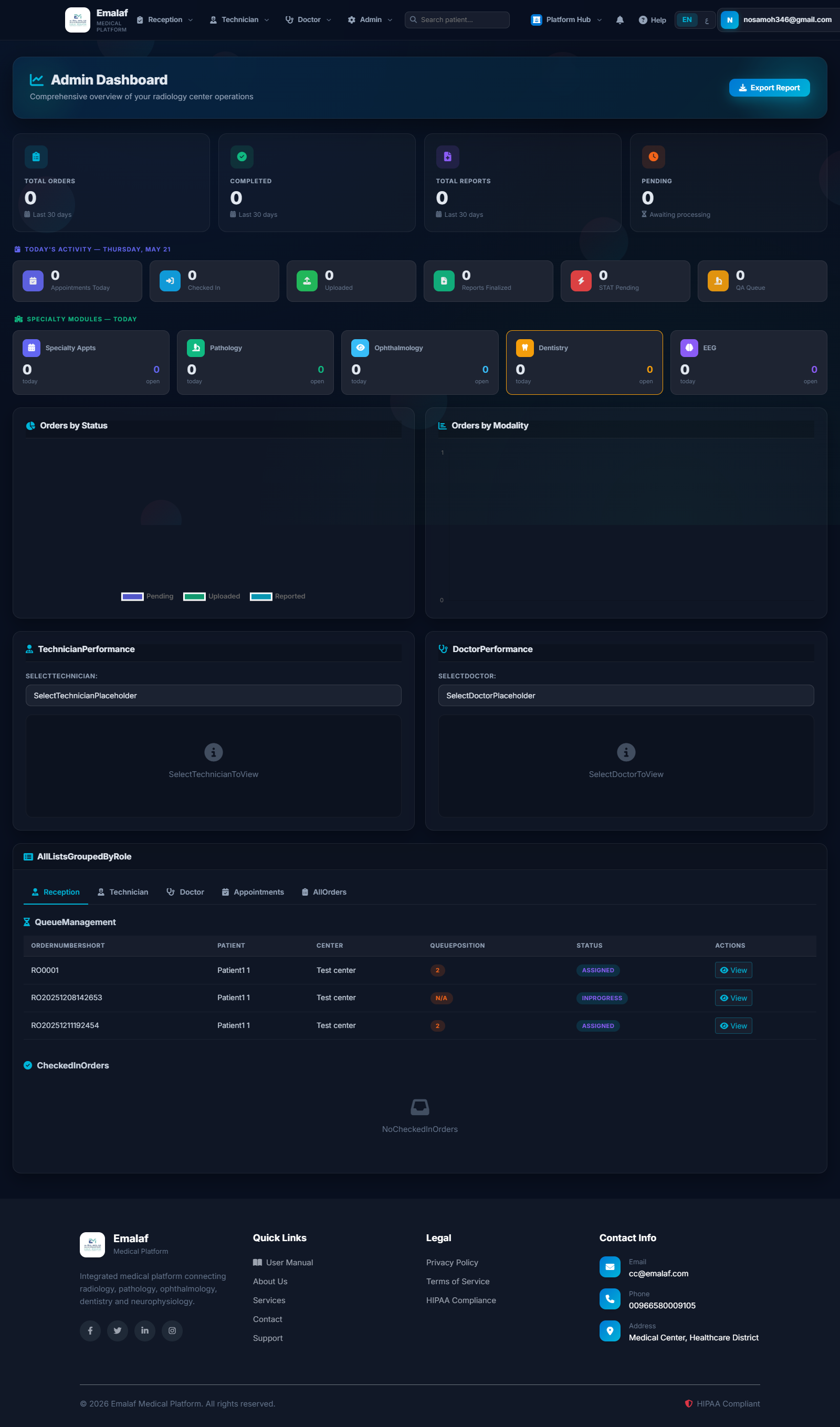
13 · Admin dashboard overview
Reference of the admin landing page — appears the moment an Admin signs in. Shows total orders, completion stats, daily activity counts, specialty-module breakdowns, and a queue-management table.
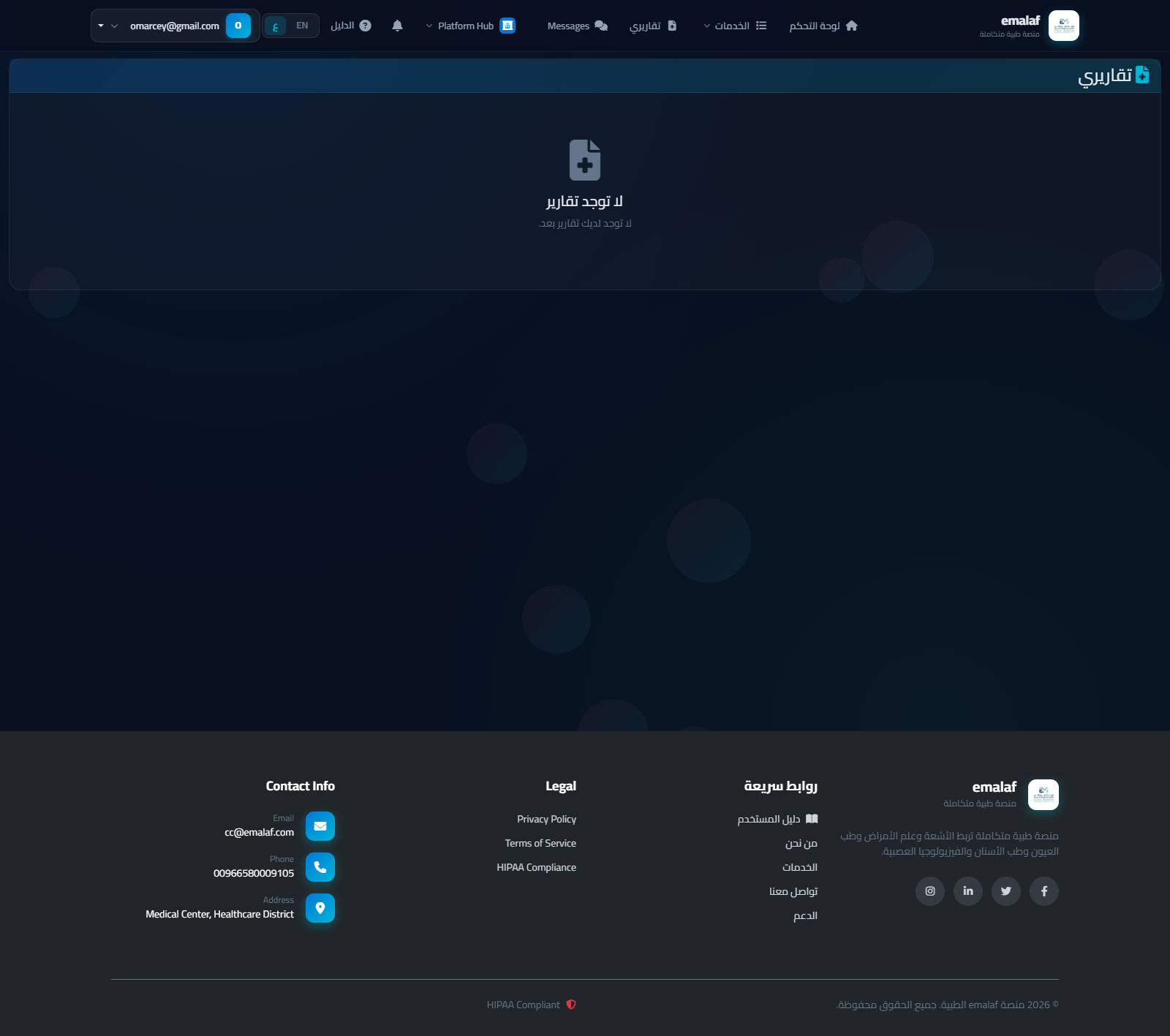
اكتملت بقية خارطة الطريق في دفعة واحدة متعددة الميزات. كل عنصر أدناه فعّال في الإنتاج، مع ملاحظات التفعيل عند الحاجة لحساب خارجي أو متغير بيئة.
1 · تنزيل تقارير PDF حقيقية
شاشات المريض تُنزِّل الآن ملف PDF فعلي بحجم A4 (كان سابقاً ملفاً فارغاً). يتم توليده عبر متصفح Chromium في الخلفية من قالب مُحسَّن للطباعة. يشمل ترويسة Emalaf، بيانات المريض، بيانات الفحص، أقسام النتائج / الانطباع / التوصيات، توقيع الطبيب، ورمز QR للتحقق. ثنائي اللغة — الـPDF يتبع لغة الواجهة الحالية.
2 · حفظ قياسات DICOM
عند تأشير الدراسة بأدوات القياس (مسطرة / سهم / مساحة …) واضغط تصدير، يحفظ النظام عملك على الخادم. عند فتح الدراسة لاحقاً تُحمَّل قياساتك تلقائياً.
3 · مكتبة العبارات الذكية
أثناء كتابة التقرير، اكتب /cxr-normal ثم Tab، فيُستبدل الرمز بنص العبارة كاملاً. أربع عبارات مشتركة جاهزة: /cxr-normal ،/ct-head-normal ،/us-abd-normal ،/signoff. المدراء يديرون المكتبة من /Admin/SmartPhrase؛ والأطباء يضيفون عبارات شخصية مرئية لهم فقط.
4 · لوحة صحة النظام
عرض تشغيلي مباشر للمدراء على /Admin/SystemHealth — زمن استجابة قاعدة البيانات، اتصال S3، أعماق الطوابير (مسودات / نتائج حرجة مفتوحة / تذكيرات معلقة / طلبات بانتظار التصوير)، ومعلومات العملية (زمن التشغيل، الذاكرة، عدد المعالجات). تحديث كل 30 ثانية. مفيد لاكتشاف المشاكل دون البحث في السجلات.
5 · تذكيرات SMS وواتساب عبر Twilio
الإشعارات ترسل SMS وواتساب حقيقية حالما تُضبط متغيرات Twilio على الخادم (TWILIO_ACCOUNT_SID، TWILIO_AUTH_TOKEN، TWILIO_FROM_NUMBER، TWILIO_WHATSAPP_FROM_NUMBER). عند غياب المتغيرات يُسجَّل تحذير ويُتابع النظام إرسال البريد كما هو.
6 · مراسلة آمنة بين المريض والطبيب
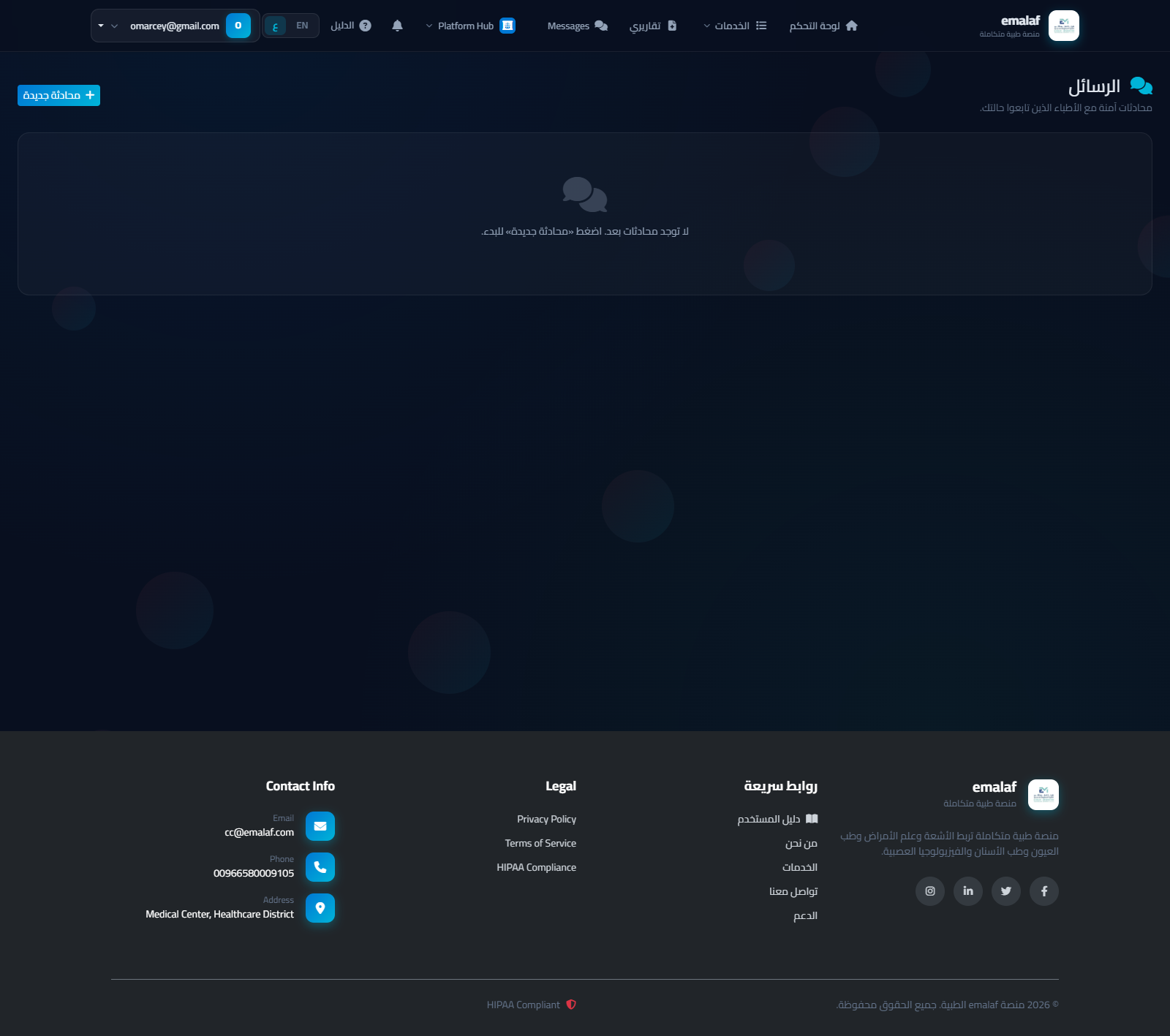
رابط الرسائل جديد في شريط التنقل لكلا الدورين. صندوق الوارد يعرض المحادثات مرتّبة بحسب الأحدث. افتح المحادثة لرؤية سجل الرسائل بتنسيق فقاعات والرد. المريض يرى الأطباء الذين تابعوه فقط؛ والطبيب يرى المرضى أصحاب الطلبات المشتركة. المرفقات حتى 10 ميغابايت لكل رسالة تُرفع إلى S3 وتظهر كمشبك تنزيل في السجل. عداد غير المقروء يظهر في جرس الإشعارات.
7 · الإملاء الصوتي في محرر التقرير
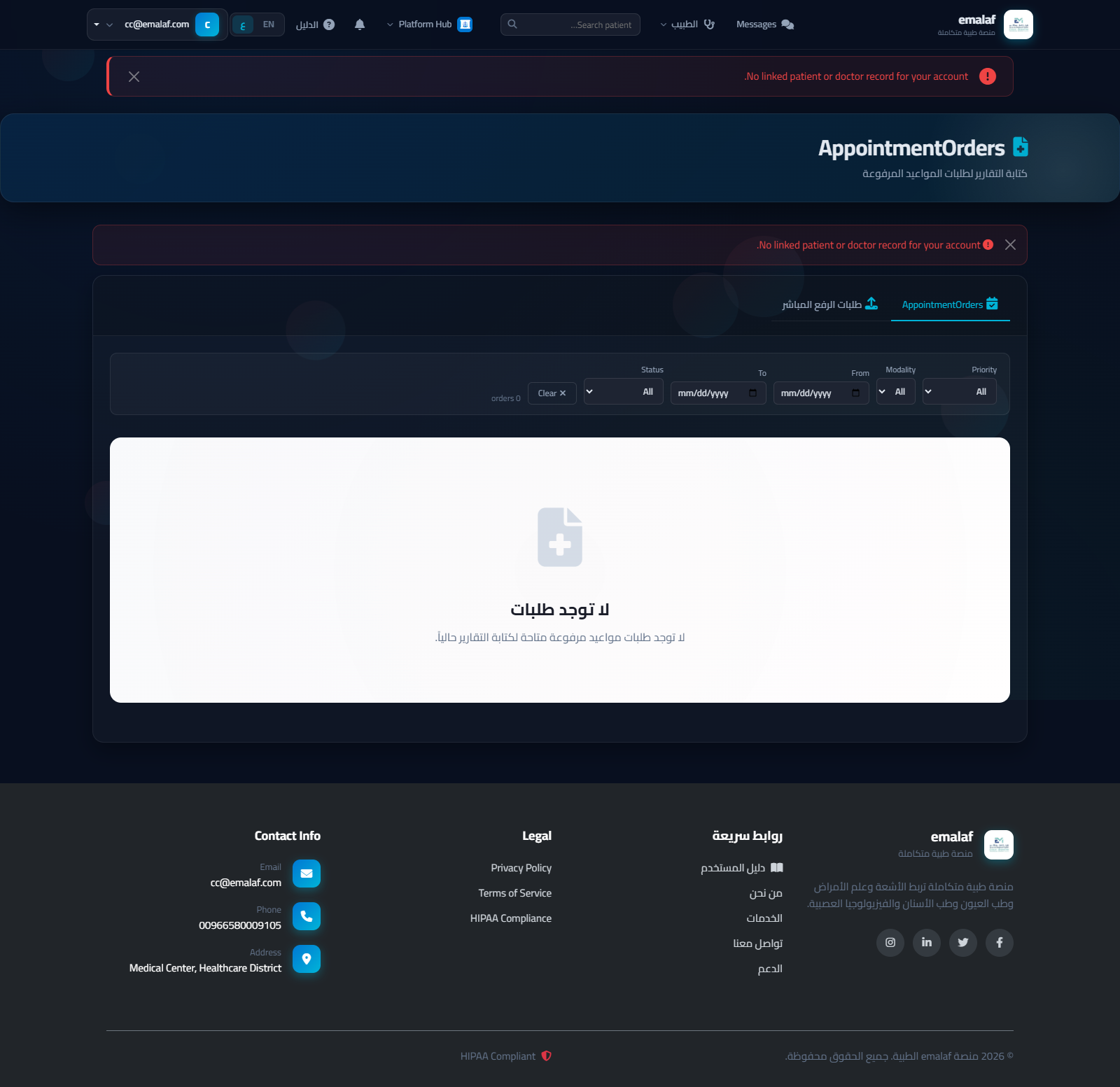
كل مربع نص (النتائج، الانطباع، التوصيات، التقرير الكامل) لديه أيقونة ميكروفون بجوار اسمه. اضغطها لبدء الإملاء، واضغطها ثانية للإيقاف. المتصفح يحوّل الصوت لنص محلياً — بدون خادم ولا مفتاح API ولا تكلفة. اللغة تتبع لغة الواجهة (en-US أو ar-SA). على المتصفحات التي لا تدعم Web Speech (Safari iOS مثلاً) تختفي الأيقونة تلقائياً.
8 · PWA — تثبيت على الشاشة الرئيسية
التطبيق صار قابلاً للتثبيت كـ Progressive Web App. على الهاتف، افتح قائمة المتصفح واختر إضافة إلى الشاشة الرئيسية — يُثبَّت أيقونة Emalaf ويفتح في وضع مستقل (بدون شريط المتصفح). يشمل اختصارات لتقاريري، حجز موعد، الرسائل. لا تُخزَّن أي بيانات للمريض على الجهاز — كل استدعاء API يذهب للخادم في كل مرة، فلا تبقى بيانات حساسة على هاتف ضائع.
9 · عارض DZI لشرائح علم الأمراض عالية الدقة
صور الشرائح كاملة (SVS، NDPI، TIFF كبير) تُقطَّع الآن إلى هرم Deep Zoom بواسطة عامل في الخلفية وتُخدم من S3. الشريحة بحجم 1 غيغابايت تستغرق 30-90 ثانية للتقطيع بعد الرفع. بعد التقطيع يمكن لأخصائي علم الأمراض التنقل والتكبير في OpenSeadragon دون تنزيل الملف كاملاً. المدراء/الأخصائيون يبدؤون التقطيع لملف معين بـ POST /DicomView/QueueDziTiling?fileId=<id>؛ النظام يكشف أيضاً GET /DicomView/GetDziManifest?fileId= (الحالة + رابط البيان) وGET /DicomView/GetDziTile?fileId=&level=&col=&row= (البلاطات الفردية).
10 · موصِّل PACS (ثنائي الاتجاه، fo-dicom)
الوارد: يستقبل Emalaf الآن دفع DICOM C-STORE من الأجهزة على منفذ TCP 11112 (قابل للتغيير). الحالات المستلمة تُخزَّن في S3 وتُسجَّل بـ OrderType="PacsInbound" لتربطها يدوياً لاحقاً بطلب فعلي. اللاقط يستجيب أيضاً لطلبات C-ECHO من الأجهزة.
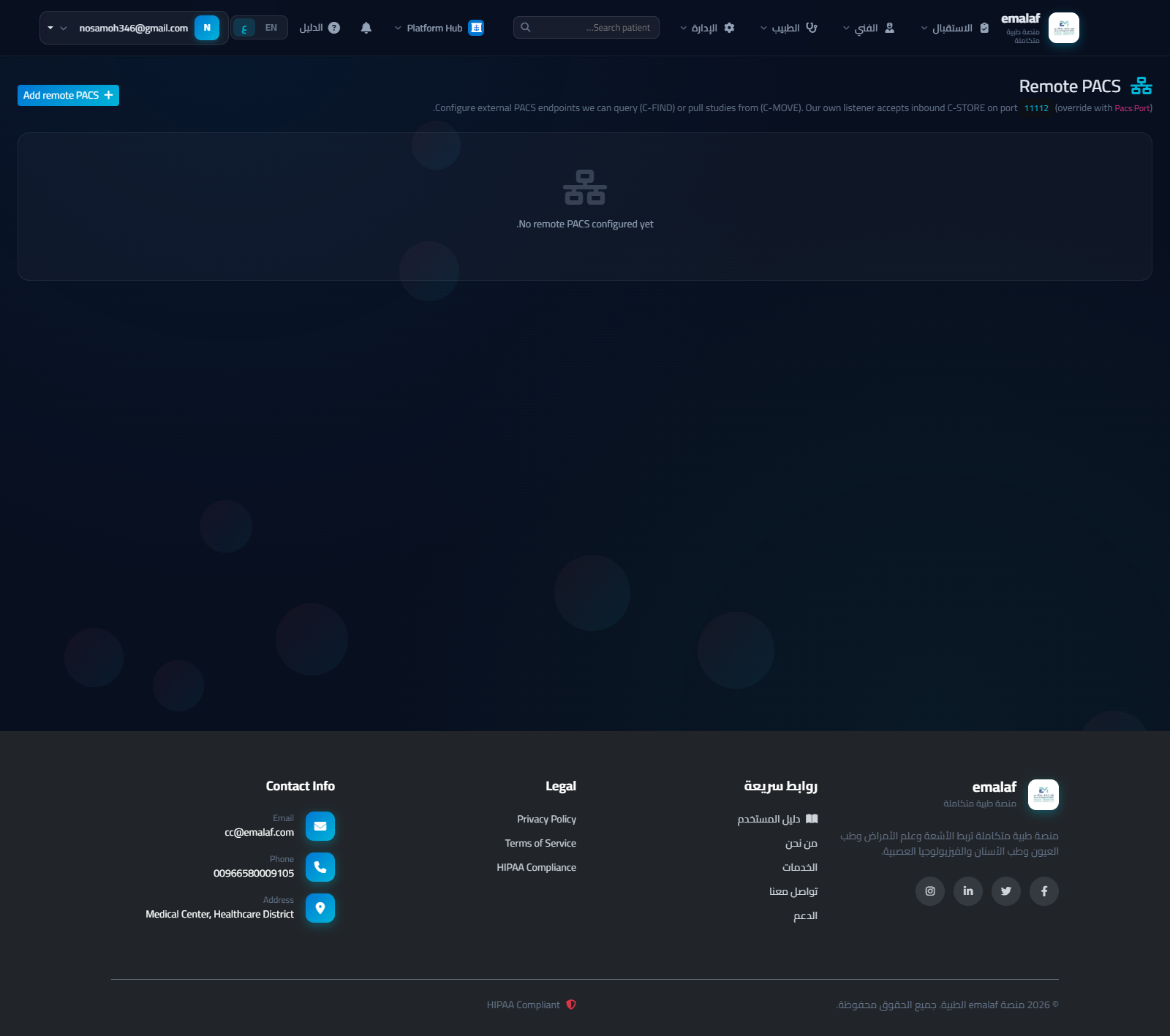
الصادر: المدراء يضبطون نقاط PACS البعيدة في /Admin/PacsConfig. كل صف يحتوي على المضيف، المنفذ، AE Title الخاص بنا، AE Title الخاص بهم. اضغط Ping لإرسال C-ECHO وتأكيد الوصول. يمكن للمدراء إصدار استعلامات C-FIND لاكتشاف الدراسات على الجهاز البعيد وطلبات C-MOVE لجلب الدراسات المختارة إلى Emalaf.
التفعيل: افتح منفذ TCP الوارد 11112 على جدار حماية الخادم، وتأكد أن أنظمة PACS / الأجهزة البعيدة قبلت AE Title لدينا (الافتراضي EMALAF) في إعداداتهم.
11 · تقوية تسجيل الدخول
BCrypt عند تسجيل الدخول التالي: كل تسجيل دخول ناجح يُعيد تشفير عمود كلمة المرور النصية تلقائياً، لتنتقل كل الحسابات إلى BCrypt خلال نحو 90 يوماً بدون إعادة تعيين جماعية. حد محاولات الفشل: 5 محاولات لكل (بريد + IP) خلال نافذة 15 دقيقة منزلقة. التسجيل الذاتي ينشئ الآن صف CommonUser حقيقي (كان طريقاً مسدوداً صامتاً) فيتمكن المريض من العودة وتسجيل الدخول.
12 · سجل التدقيق (للمدراء)
كل عملية تسجيل دخول، إتمام تقرير، تأكيد نتيجة حرجة، وغيرها من الإجراءات المهمة تُكتب في RIS_AuditLog. المدراء يستعلمون من /Admin/AuditLog بفلاتر للمستخدم ونطاق التاريخ والإجراء — مفيد لتدقيقات الامتثال («من اطّلع على تقرير المريض س في اليوم ص») ولتصدير CSV.
13 · نظرة عامة على لوحة المدير
صفحة هبوط المدير التي تظهر فور تسجيل الدخول. تعرض إجمالي الطلبات وإحصاءات الإتمام وأعداد النشاط اليومي وتفصيل الوحدات التخصصية وجدول إدارة طوابير الانتظار.
Emalaf Rebrand & Multi-Module Hub Live إعادة تسمية emalaf وهَب متعدد الوحدات مُفعَّل
The platform now ships under the unified Emalaf brand. The product is no longer a single radiology portal — it is a five-module medical platform with a dedicated landing page (the Hub) and per-module identities.
- Hub (
/Hub) — platform-level landing that lists every module a center has access to. - Per-module branding — every page shows the active module name and tagline ("Emalaf · Radiology", "Emalaf · Pathology", …). The brand resolves automatically from the active subdomain or query string.
- Per-module logos —
~/images/logo.jpgfor the Hub and~/images/logosmall.pngfor every specialty module. - Browser tab title now reads "{Page Title} · Emalaf · {Module}" — no more legacy "RIS" suffix.
المنصة الآن تحت هوية موحَّدة باسم emalaf. لم يعد المنتج بوابة أشعة واحدة — بل منصة طبية بخمس وحدات مع صفحة هبوط مخصصة (الهَب) وهويات منفصلة لكل وحدة.
- الهَب (
/Hub) — صفحة هبوط على مستوى المنصة تعرض كل الوحدات التي يصل إليها المركز. - هوية لكل وحدة — كل صفحة تعرض اسم الوحدة النشطة وشعارها ("emalaf · الأشعة"، "emalaf · علم الأمراض"، …). الهوية تُحدَّد تلقائياً من النطاق الفرعي أو معامل الاستعلام.
- شعارات لكل وحدة —
~/images/logo.jpgللهَب و~/images/logosmall.pngلكل وحدة تخصصية. - عنوان تبويب المتصفح أصبح "{عنوان الصفحة} · emalaf · {الوحدة}" — دون أي بقايا للاسم القديم RIS.
Module Switcher in Navbar Live مبدّل الوحدات في شريط التنقل مُفعَّل
A new dropdown in the top-right of the navbar lets any user switch between modules without losing their session. The currently-active module is shown with its icon and color.
- Click the module chip → see the full list of platform modules.
- Platform Hub is always at the top.
- Modules not yet activated for the center show a Soon badge and are non-clickable.
قائمة منسدلة جديدة في أعلى يمين الشريط تتيح لأي مستخدم التنقل بين الوحدات دون فقدان الجلسة. الوحدة النشطة معروضة برمزها ولونها.
- اضغط على شارة الوحدة لرؤية كل وحدات المنصة.
- الهَب دائماً في الأعلى.
- الوحدات غير المُفعَّلة في المركز تظهر بشارة قريباً ولا يمكن النقر عليها.
Subdomain-Based Module Routing Live توجيه الوحدات عبر النطاقات الفرعية مُفعَّل
Every module is reachable by its own subdomain. The platform detects the host and activates the matching module automatically:
| Subdomain | Module |
|---|---|
hub.emalaf.com | Platform Hub |
ris.emalaf.com | Radiology |
pathology.emalaf.com | Digital Pathology |
ophthalmology.emalaf.com | Ophthalmology |
dentistry.emalaf.com | Dentistry |
eeg.emalaf.com | Neurophysiology / EEG |
For local development you can override the active module by appending ?module=pathology (or any other module key) to any URL.
كل وحدة يمكن الوصول إليها عبر نطاق فرعي خاص بها. تكتشف المنصة النطاق وتُفعِّل الوحدة المطابقة تلقائياً:
| النطاق الفرعي | الوحدة |
|---|---|
hub.emalaf.com | الهَب |
ris.emalaf.com | الأشعة |
pathology.emalaf.com | علم الأمراض الرقمي |
ophthalmology.emalaf.com | طب العيون |
dentistry.emalaf.com | طب الأسنان |
eeg.emalaf.com | الفيزيولوجيا العصبية / EEG |
للتطوير المحلي يمكن تجاوز الوحدة النشطة بإضافة ?module=pathology (أو أي مفتاح وحدة آخر) إلى أي رابط.
EN / ع Language Toggle Live مبدّل اللغة EN / ع مُفعَّل
The legacy language dropdown has been replaced with a two-button toggle in the navbar. Pressing it sets the .AspNetCore.Culture cookie and reloads the page so every screen — including server-rendered @T[…] strings, navbar items, and dashboards — comes back in the selected language.
RTL layout activates automatically when Arabic is chosen: <html dir="rtl">, Cairo font, mirrored margins, reversed flow diagrams, RTL tables.
تم استبدال القائمة المنسدلة القديمة للغة بزر مزدوج في الشريط العلوي. الضغط عليه يحفظ كوكي .AspNetCore.Culture ويعيد تحميل الصفحة بحيث تعود كل الشاشات — بما فيها نصوص @T[…] من الخادم وعناصر الشريط ولوحات التحكم — باللغة المختارة.
تفعيل اتجاه من اليمين تلقائي عند اختيار العربية: <html dir="rtl">، خط Cairo، هوامش معكوسة، مخططات تدفُّق منعكسة، جداول RTL.
Dark Glassmorphic UI Live واجهة داكنة زجاجية موحَّدة مُفعَّل
The entire platform now uses a single dark glassmorphic palette. The navbar, login, register, patient portal, admin dashboard, and every role workspace render with the same surface, border and accent tokens.
- Background
#080f1f, glass surfacergba(255,255,255,.028), borderrgba(255,255,255,.065). - Accents — cyan
#00b4d8, green#10b981, orange#f26419, purple#8b5cf6, red#ef4444. - Implemented as a single global stylesheet
~/css/platform-dark.cssloaded after the legacymodern-theme.css, so every page using shared classes (.kpi-card-modern,.chart-card,.content-card,.btn-modern,.table-modern, …) inherits the dark style without per-page edits.
المنصة كلها الآن تستخدم لوحة ألوان موحَّدة داكنة زجاجية. الشريط العلوي، تسجيل الدخول، التسجيل، بوابة المريض، لوحة المدير، وكل صفحات الأدوار تعرض بنفس الأسطح والحدود والألوان المميزة.
- الخلفية
#080f1f، السطح الزجاجيrgba(255,255,255,.028)، الحدودrgba(255,255,255,.065). - الألوان المميزة — تركوازي
#00b4d8، أخضر#10b981، برتقالي#f26419، أرجواني#8b5cf6، أحمر#ef4444. - طُبِّق كملف CSS عام واحد
~/css/platform-dark.cssيُحمَّل بعدmodern-theme.cssالقديم، فترث كل الصفحات التي تستخدم الفئات المشتركة (.kpi-card-modern،.chart-card،.content-card،.btn-modern،.table-modern، …) المظهر الداكن دون أي تعديل لكل صفحة.
Consolidated Schema Sync Script 022 Live سكربت توحيد المخطط 022 مُفعَّل
A single idempotent SQL script (RIS_Portal/Scripts/022_FullSchemaSync.sql) consolidates the previous 019, 020, 021 migrations and adds defensive guards for every column and table that the dashboard plus all specialty modules touch.
- Adds
Priority+ 9 newer columns toRIS_RadiologyOrders. - Creates
RIS_SpecialtyAppointments,RIS_OrderStatusHistory,RIS_ReminderLog,RIS_AuditLog,RIS_CriticalResultAck,RIS_AppointmentReminder,RIS_AppointmentConfirmationToken,RIS_ReminderSettings. - Creates the full Pathology, Ophthalmology, Dentistry and EEG module tables (
PATH_*,OPH_*,DENT_*,EEG_*). - Every
CREATEandALTERis wrapped inIF NOT EXISTS— safe to re-run.
Run with: sqlcmd -S .\SQLEXPRESS -d NewDicomV5 -i 022_FullSchemaSync.sql
سكربت SQL واحد قابل للتشغيل مرات (RIS_Portal/Scripts/022_FullSchemaSync.sql) يدمج الترحيلات السابقة 019 و 020 و 021 ويضيف حمايات دفاعية لكل عمود وجدول تستخدمه لوحة المدير وجميع وحدات التخصصات.
- يضيف
Priority+ 9 أعمدة أحدث إلىRIS_RadiologyOrders. - ينشئ
RIS_SpecialtyAppointmentsوRIS_OrderStatusHistoryوRIS_ReminderLogوRIS_AuditLogوRIS_CriticalResultAckوRIS_AppointmentReminderوRIS_AppointmentConfirmationTokenوRIS_ReminderSettings. - ينشئ جداول وحدات علم الأمراض وطب العيون وطب الأسنان وتخطيط الدماغ كاملةً (
PATH_*،OPH_*،DENT_*،EEG_*). - كل
CREATEوALTERمحمي بـIF NOT EXISTS— آمن لإعادة التشغيل.
للتشغيل: sqlcmd -S .\SQLEXPRESS -d NewDicomV5 -i 022_FullSchemaSync.sql
Payment Gateway (Stripe / PayPal) Planned بوابة الدفع (Stripe / PayPal) مُخطط
What's coming 4–6 h
Patients will be able to settle co-pays and self-pay invoices online before or after their appointment. Admin will see real payment confirmations, refunds and reconciliation in /Admin/Billing/Payments.
Today: BillingService records invoices but cannot collect money.
After: Stripe / PayPal adapter, invoice generation, refund workflow, revenue recognition.
ما القادم 4–6 ساعات
سيتمكن المرضى من دفع المساهمات والفواتير الذاتية إلكترونياً قبل الموعد أو بعده. سيرى المدير تأكيدات الدفع والاسترداد والتسوية الفعلية في /Admin/Billing/Payments.
اليوم: BillingService يسجّل الفواتير فقط ولا يجمع أموالاً.
بعد التحديث: موصِّل Stripe/PayPal، توليد الفواتير، سير الاسترداد، الاعتراف بالإيرادات.
Real Insurance Verification API Planned واجهة تحقق فعلية من التأمين مُخطط
What's coming 6–8 h
Live carrier integration replaces the stub that currently auto-returns Verified. Reception will see real coverage, copay, deductible and pre-auth requirement values during check-in.
File to replace: InsuranceVerificationService.PerformVerificationAsync.
ما القادم 6–8 ساعات
تكامل مباشر مع شركات التأمين يحلّ محل التحقق الوهمي الحالي الذي يعيد تم التحقق تلقائياً. سيرى موظف الاستقبال التغطية الحقيقية والمساهمة وقيمة الاستقطاع ومتطلبات التفويض المسبق أثناء تسجيل الوصول.
الملف المُستهدف: InsuranceVerificationService.PerformVerificationAsync.
SMS & WhatsApp Notifications Live إشعارات SMS وواتساب مُفعَّل
What's coming 2–3 h
Twilio / AWS SNS provider added to NotificationService so appointment reminders, confirmations, and critical-result escalations are delivered by SMS and WhatsApp, not only email. Delivery status will be tracked in /Admin/ReminderLog.
ما القادم 2–3 ساعات
إضافة Twilio أو AWS SNS إلى NotificationService ليصبح إرسال تذكيرات المواعيد والتأكيدات وتصعيد النتائج الحرجة عبر SMS والواتساب وليس البريد فقط. سيُتتبَّع التسليم في /Admin/ReminderLog.
PACS Connector (fo-dicom, bidirectional) Live موصِّل PACS (fo-dicom، ثنائي الاتجاه) مُفعَّل
What's coming 8–10 h
Today imaging is stored locally and on S3. After: an outgoing forwarder pushes every received study to an enterprise PACS, and a query-retrieve worker can pull priors from PACS into the report viewer.
ما القادم 8–10 ساعات
اليوم تُخزَّن الصور محلياً وعلى S3. بعد التحديث: مُمرِّر صادر يدفع كل دراسة مُستلَمة إلى PACS مؤسسي، وعامل استعلام/استرداد يجلب الدراسات السابقة من PACS إلى عارض التقرير.
Patient ↔ Doctor Secure Messaging Live مراسلة آمنة بين المريض والطبيب مُفعَّل
What's coming 6–8 h
A new PatientMessageController + DB table enables follow-up questions after a report. Doctors see new threads in their dashboard; patients see them in /PatientPortal.
ما القادم 6–8 ساعات
وحدة تحكم جديدة PatientMessageController وجدول قاعدة بيانات تتيح أسئلة المتابعة بعد التقرير. يرى الأطباء المحادثات الجديدة في لوحتهم، والمرضى في /PatientPortal.
Batch Report Signing Live توقيع جماعي للتقارير مُفعَّل
What's coming ~2 h
Doctors will be able to sign multiple finalized reports in one action — projected to lift radiologist productivity by ~30%. Built into DoctorReportController.Finalize by accepting a list of report IDs.
ما القادم ~ساعتان
سيتمكن الأطباء من توقيع عدة تقارير نهائية بإجراء واحد — يُتوقع رفع إنتاجية طبيب الأشعة بنحو 30٪. يُضاف داخل DoctorReportController.Finalize بقبول قائمة من معرفات التقارير.
PDF Report Export Live تصدير التقارير بصيغة PDF مُفعَّل
What's coming 3–4 h
Patient and doctor screens get a real Download PDF action backed by ClosedXML (already referenced in the csproj). QR code linking to the digital version will be embedded in the printout.
ما القادم 3–4 ساعات
تحصل شاشات المريض والطبيب على إجراء حقيقي تنزيل PDF مدعوم بـ ClosedXML (مذكور في csproj). سيُضمَّن رمز QR في النسخة المطبوعة يحيل إلى النسخة الرقمية.
Voice Dictation for Reports Live إملاء صوتي للتقارير مُفعَّل
What's coming
Investigating browser Web Speech API + cloud speech-to-text for clinical dictation directly inside the report editor. Will support both English and Arabic medical vocabularies.
ما القادم
دراسة استخدام Web Speech API في المتصفح إضافة إلى خدمة تحويل صوت لنص سحابية للإملاء السريري داخل محرر التقارير. سيدعم المفردات الطبية بالإنجليزية والعربية.
Smart Phrase / Macro Library Live مكتبة العبارات الذكية والاختصارات مُفعَّل
What's coming
Doctors type .normal-chest or .ct-head-norm and the system expands the macro into a full pre-validated paragraph. Each modality + subspecialty will ship with a starter pack.
ما القادم
يكتب الطبيب .normal-chest أو .ct-head-norm فيستبدلها النظام بفقرة كاملة موثقة. كل وحدة + تخصص فرعي ستأتي بمجموعة بداية جاهزة.
System Health Dashboard Live لوحة صحة النظام مُفعَّل
What's coming
A new admin page exposes service health: DB latency, S3 connectivity, background-job last-run, queue depths and outstanding critical results — so on-call admins can detect issues without grepping logs.
ما القادم
صفحة مدير جديدة تعرض صحة الخدمات: زمن استجابة قاعدة البيانات، اتصال S3، آخر تشغيل للمهام الخلفية، أعماق الطوابير، النتائج الحرجة المعلَّقة — حتى يكتشف المدير المناوب المشاكل دون البحث في السجلات.
Capturing & Adding Screenshots التقاط الصور وإضافتها
This manual is delivered as a single HTML file so you can embed your own screenshots without re-deploying any code. Screenshots help new staff onboard faster than text descriptions alone — especially for the bilingual workflow where the same screen looks different in EN vs AR.
1 · Capture
- Windows:
Win + Shift + Sopens the snipping rectangle. The capture is in your clipboard and also saved to%USERPROFILE%\Pictures\Screenshots\. - macOS:
Cmd + Shift + 4for a region,Cmd + Shift + 5for the recorder UI. - Capture at 1920×1080 or larger; the manual will scale it down for narrow screens.
- Use the dark theme of the app (the default) so screenshots match the manual's look.
- Blur or mask any patient PHI before saving — names, national IDs, phone numbers, MRN.
2 · Save into the manual folder
Save the file as PNG under RIS_Portal/wwwroot/manual-images/ using a descriptive name, e.g. doctor-appointment-orders.en.png for English or doctor-appointment-orders.ar.png for Arabic. Keep both languages so RTL screens are documented properly.
3 · Embed in the manual
Paste this snippet into the relevant section. The bilingual en-content / ar-content wrappers automatically hide the wrong language depending on the toggle.
<figure class="en-content">
  <img src="manual-images/doctor-appointment-orders.en.png"
       alt="Doctor's appointment queue"
       style="width:100%; max-width:900px; border:1px solid var(--border); border-radius:8px;"/>
  <figcaption style="color:var(--muted); font-size:.78rem; margin-top:6px;">
    The doctor's appointment queue showing assigned studies.
  </figcaption>
</figure>
<figure class="ar-content">
  <img src="manual-images/doctor-appointment-orders.ar.png"
       alt="طابور مواعيد الطبيب"
       style="width:100%; max-width:900px; border:1px solid var(--border); border-radius:8px;"/>
  <figcaption style="color:var(--muted); font-size:.78rem; margin-top:6px;">
    طابور المواعيد الخاص بالطبيب يعرض الفحوصات المسندة إليه.
  </figcaption>
</figure>
4 · Suggested screenshots to capture first
- Login screen (the page admin/doctor/receptionist/patient/technician all start at).
- Admin dashboard top KPI strip.
- Doctor's "Appointment Orders" queue.
- Reception check-in page with the new amber "manual verification mode" banner visible.
- Reminder Settings page with the "email-only" amber banner.
- Patient Portal home (the cards row).
- DICOM viewer measurement tools panel with the "Soon" badge on the Export button.
- Patient Reports page with a disabled PDF button visible.
The five screenshots starred above will document both the working feature and the new "Soon" UX, so future readers understand what status the platform was in when this version of the manual was published.
هذا الدليل يُسلَّم كملف HTML واحد، فيمكنك تضمين لقطات شاشتك دون الحاجة إلى إعادة نشر أي كود. تساعد لقطات الشاشة الموظفين الجدد على الفهم أسرع من الوصف النصي وحده — خاصة في النظام ثنائي اللغة حيث تختلف الواجهة في الإنجليزية عن العربية.
1 · الالتقاط
- Windows:
Win + Shift + Sلفتح أداة القصّ. الصورة تذهب إلى الحافظة وتُحفظ أيضاً في%USERPROFILE%\Pictures\Screenshots\. - macOS:
Cmd + Shift + 4لمنطقة، أوCmd + Shift + 5لأداة التسجيل. - التقط بدقة 1920×1080 على الأقل؛ سيتم تصغيرها تلقائياً للشاشات الصغيرة.
- استخدم السمة الداكنة في التطبيق (هي الافتراضية) لتطابق صور الدليل.
- أخفِ أو ضبّب أي بيانات شخصية للمريض قبل الحفظ — الأسماء، أرقام الهوية، الهواتف، رقم الملف.
2 · الحفظ داخل مجلد الدليل
احفظ الصورة بصيغة PNG داخل RIS_Portal/wwwroot/manual-images/ باسم وصفي، مثل doctor-appointment-orders.en.png للإنجليزية و doctor-appointment-orders.ar.png للعربية. احرص على وجود اللغتين لتوثيق شاشات RTL بشكل صحيح.
3 · التضمين في الدليل
الصق هذا المقطع في القسم المناسب. الأغلفة ثنائية اللغة en-content / ar-content تخفي اللغة غير المختارة تلقائياً.
<figure class="ar-content">
  <img src="manual-images/doctor-appointment-orders.ar.png"
       alt="طابور مواعيد الطبيب"
       style="width:100%; max-width:900px; border:1px solid var(--border); border-radius:8px;"/>
  <figcaption style="color:var(--muted); font-size:.78rem; margin-top:6px;">
    طابور المواعيد الخاص بالطبيب.
  </figcaption>
</figure>
4 · أولوية الصور المطلوب التقاطها
- شاشة تسجيل الدخول.
- شريط مؤشرات الأداء (KPI) في لوحة المدير.
- طابور «طلبات المواعيد» الخاص بالطبيب.
- صفحة استقبال المرضى مع لافتة «وضع التحقق اليدوي» ظاهرة.
- صفحة إعدادات التذكير مع لافتة «بريد إلكتروني فقط» ظاهرة.
- الصفحة الرئيسية لبوابة المريض.
- أدوات القياس في عارض DICOM مع شارة «قريباً» على زر التصدير.
- صفحة تقارير المريض مع زر PDF المعطَّل ظاهراً.
الصور المؤشَّر عليها أعلاه ستوثّق الميزة العاملة وكذلك تجربة «قريباً» الجديدة، فيفهم القارئ المستقبلي حالة المنصة وقت نشر هذه النسخة من الدليل.